
Physical Measurement Units, DPI Conversion & Print Precision
Desktop publishing requires precision that bridges on-screen pixels and physical paper dimensions. Open Publisher features a comprehensive physical measurement unit and DPI conversion subsystem. Designers can plan documents in Centimeters, Millimeters, Inches, or Pixels, switch between web (96 DPI) and commercial print (300 DPI) resolutions with live conversions, and print without multi-sheet slicing or blank page overflows.
📐New Document & Resize Physical Units Dialog
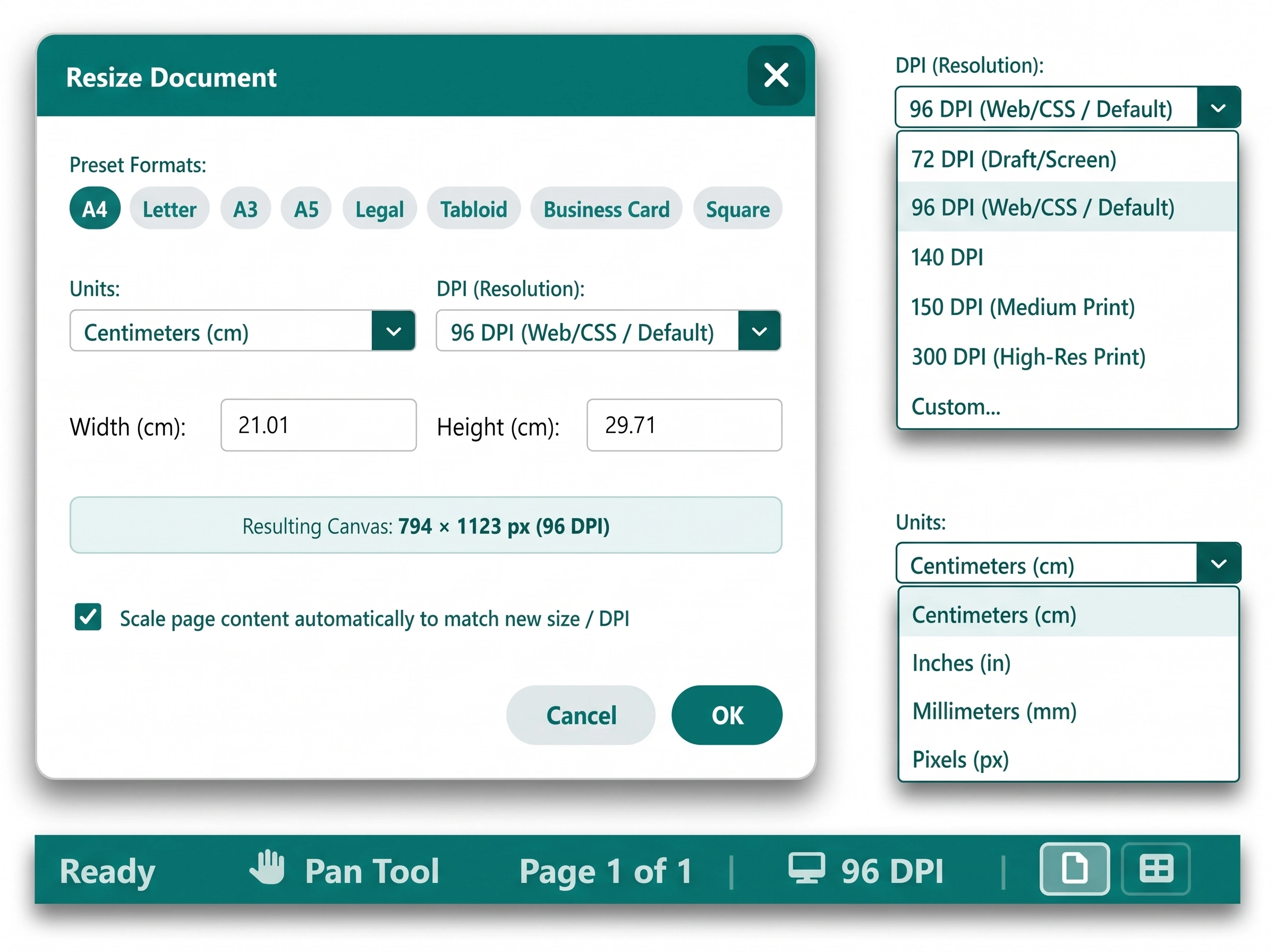
Live physical unit conversion between Centimeters, Millimeters, Inches, and Pixels with DPI selection and canvas preview.
Centralized Physical Unit & DPI Engine
The window.UnitConversionService in core/units.js handles bidirectional mathematical conversions across the entire application:
-
Supported Measurement Units: Centimeters (cm), Millimeters (mm), Inches (in), and Screen Pixels (px).
-
Resolution Presets: Choose from 96 DPI (Standard Web / CSS default), 72 DPI (Draft / Screen), 140/150 DPI (Medium Print), 300 DPI (High-Resolution Commercial Print), or enter custom DPI values.
-
Canonical Paper Presets: Direct physical dimensions for standard formats including A4 (210 x 297 mm), Letter (8.5 x 11 in), A3 (297 x 420 mm), A5 (148 x 210 mm), Legal, Tabloid, Business Card (3.5 x 2 in), and Square.
-
Smart Format Detection: The detectFormat(w, h, dpi) engine accurately classifies paper formats regardless of whether the document is configured at 96 DPI or 300 DPI.
Print Engine Precision & Blank Sheet Elimination
High-resolution printing requires exact physical mapping to printer drivers:
-
Multi-Sheet Slicing Elimination: Physical @page CSS dimensions evaluate dynamically using masterPW / masterDpi. At 300 DPI, an A4 page maps to exact physical paper dimensions rather than oversized poster dimensions, fitting onto a single sheet of paper without slicing.
-
Sub-Pixel Rounding Fix: Height calculations apply calc(${heightInches}in - 1px) to eliminate fractional rounding overflows that previously triggered unintended blank sheets between pages.
-
Strict Page Breaks: Pages utilize break-inside: avoid !important;, and the final document page enforces break-after: avoid !important; to prevent empty trailing sheets.
DPI-Aware Rulers, Margins & Adaptive Viewports
Canvas tools automatically adapt to physical resolution changes:
-
Metric Centimeter Default: Rulers default to Centimeters (cm), accurately ticking from 0 to 21 cm across an A4 page regardless of chosen DPI. Right-click any ruler to switch units to Inches, Millimeters, or Pixels.
-
DPI-Invariant Margins: Margin guides maintain constant physical distances (e.g. 0.5 inches / 1.27 cm) across DPI changes, scaling internal pixel counts automatically so margins do not collapse against page borders.
-
Adaptive Multi-Page View: The multi-page overview threshold calculates dynamically as 0.45 * (96 / dpi). On 300 DPI documents, a 20% zoom fit remains in clean single-page view rather than prematurely triggering multi-page layout.
-
Zoom-Invariant Control Handles: Selection and resize handles use inverse-zoom CSS custom properties to maintain a constant, comfortable 10px optical screen size even when zoomed out to 15% on high-DPI canvases.
Interactive Status Bar DPI Badge & Toast
The bottom status bar features an unobtrusive #dpi-status-display badge showing active resolution (e.g., 300 DPI). Hovering reveals a translucent highlight, and clicking the badge instantly opens the Page Setup / Resize Document dialog. When DPI is modified, a signature teal toast notification confirms that dimensions and content scaled proportionally.
Tip: When resizing an existing document to 300 DPI, leave "Scale page content automatically" checked to proportionally scale all text boxes, images, and shapes to the new resolution.