Page Setup & Dimensions
Configuring your canvas correctly is the foundational step for any publication. Open Publisher provides robust controls for document sizing, margins, and orientation directly from the Page Design ribbon tab.
Page Size & Format
The Page Design ribbon tab houses the Size dropdown, which lets you instantly resize the entire canvas to standard international and regional formats:
| Format | Dimensions |
| A3 | 297 x 420 mm |
| A4 | 210 x 297 mm (European/UK default) |
| A5 | 148 x 210 mm |
| Letter | 8.5 x 11 in (US/Canada/Mexico default) |
| Legal | 8.5 x 14 in |
| Tabloid | 11 x 17 in |
| Business Card | 3.5 x 2 in |
Locale-Aware Defaults: When you create a new document, Open Publisher automatically selects the correct default size for your region. Users in the US, Canada, Mexico, Colombia, Venezuela, Chile, and the Philippines default to US Letter. Users everywhere else default to A4.
Each preset is represented by a unique icon in the dropdown, and the top-right corner of the canvas always displays the correct format indicator, which updates instantly whenever you change size.

Page Orientation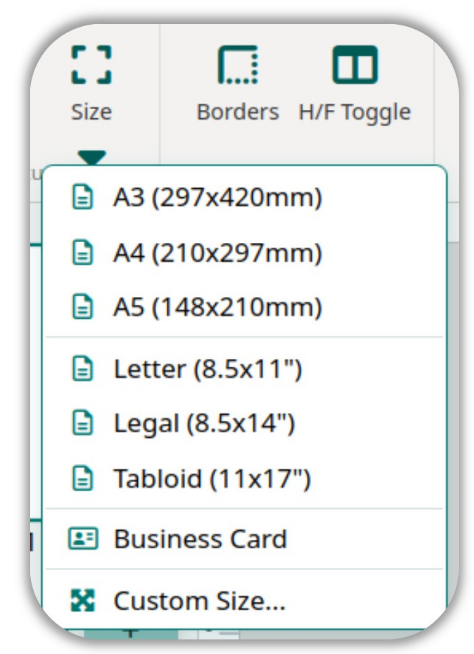
You can toggle between Portrait and Landscape directly from the Page Design tab. The print and PDF export engines handle mixed-orientation documents correctly, automatically rotating pages in the output to match what you designed.
Page Margins
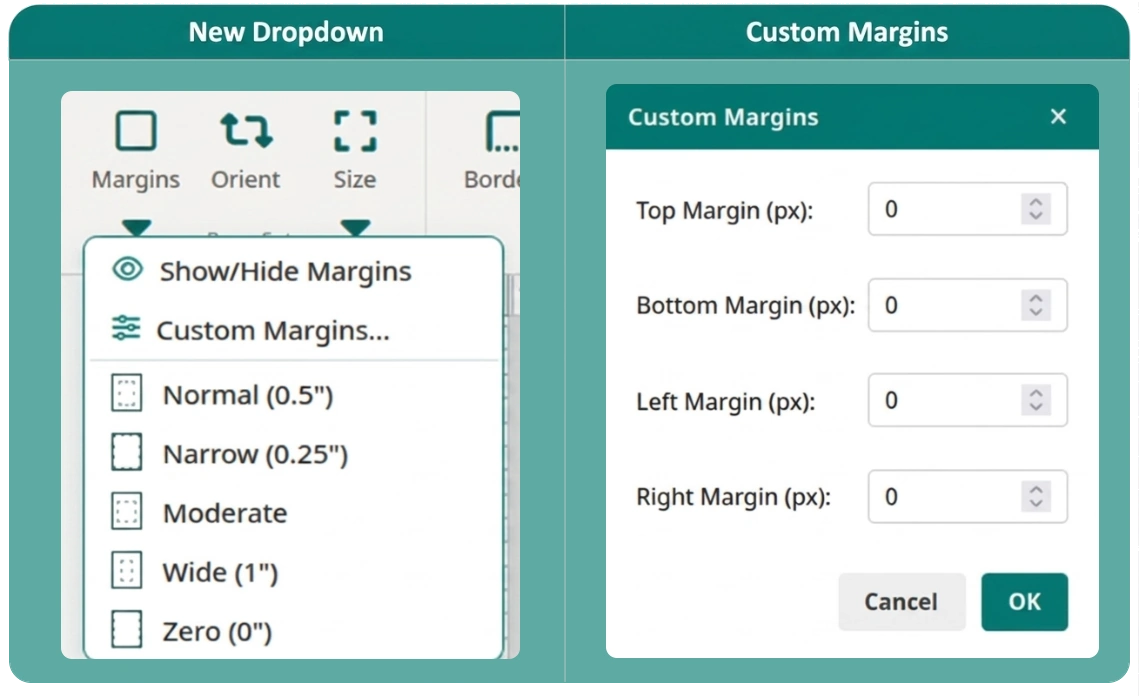
The Margins button in the Page Design ribbon controls the safe-zone guides on the canvas. Clicking it opens a dropdown with five instant presets:
| Preset | Margin Values |
| Normal | 0.5 in on all sides |
| Narrow | 0.25 in on all sides |
| Moderate | 1 in top/bottom, 0.75 in left/right |
| Wide | 1 in on all sides |
| Zero | 0 in - for borderless, full-bleed printing |
Each preset shows a small dynamic page icon that visually represents the margin layout before you click.
Custom Margins: For precise control, click Custom Margins… to open a configuration modal where you can set independent top, bottom, left, and right margins down to the pixel. Your custom margins integrate immediately with the blue snap guides visible on the canvas and are saved into your .opub file so they persist when the file is reopened. Margins are automatically excluded from exported images and PDFs, meaning they never appear in your final output.