
The Document Info Menu
Navigating through multiple ribbon tabs to find crucial document settings can slow down your workflow. To solve this, File > Info opens a centralised hub for advanced document settings, metadata, and diagnostics. Inspired by the “Backstage View” found in industry-leading professional publishing software, this dedicated menu ensures that everything you need to prepare, protect, and finalise your document is conveniently located in one intuitive panel. Whether you are prepping a file for commercial print or securing it for private distribution, the Info menu acts as your pre-publication control centre.
What You Can Access from File > Info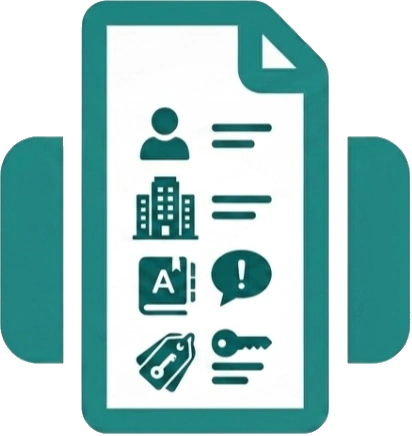
The Info menu houses several critical utilities for managing your file’s background data and output readiness. From this screen, you can access:
-
 Document Properties – Define essential metadata such as Author, Company, Subject, and Keywords. This is highly recommended for keeping your files organised, improving internal searchability, and ensuring proper attribution when sharing digital copies with clients or colleagues.
 -
 Document Inspector – Protect your privacy and clean up your workspace. This tool thoroughly scans your file to identify hidden metadata, stray off-canvas elements, and empty text boxes that you may want to purge before sharing the document publicly.
 -
 Run Design Checker – Consider this your pre-flight diagnostic scan. It reviews your layout for common publishing errors-such as unseen text overflow, low-resolution images, and objects sitting outside the printable margins-ensuring your document is flawless before exporting.
 -
 CMYK / RGB Colour Mode – Easily toggle your project’s underlying colour profile depending on its final destination.
Switch to CMYK for accurate ink mixing in commercial printing,
or use RGB for vibrant digital and web-based viewing. -
 Protect Document – Secure sensitive information by applying or removing robust AES-GCM password encryption.
This guarantees that only authorized individuals with the password is able to open and view your Open Publisher document. -
 Graphics Manager – Open the full image asset management panel, allowing you to track, update, relink, or replace images across your entire document from a single streamlined list.
Because these are powerful and comprehensive tools, each one has its own dedicated article in this Knowledge Base containing full, step-by-step instructions. Think of the Document Info menu as your fast, centralised launchpad giving you immediate access to all of them from one convenient place.