
Quick Rounded Corners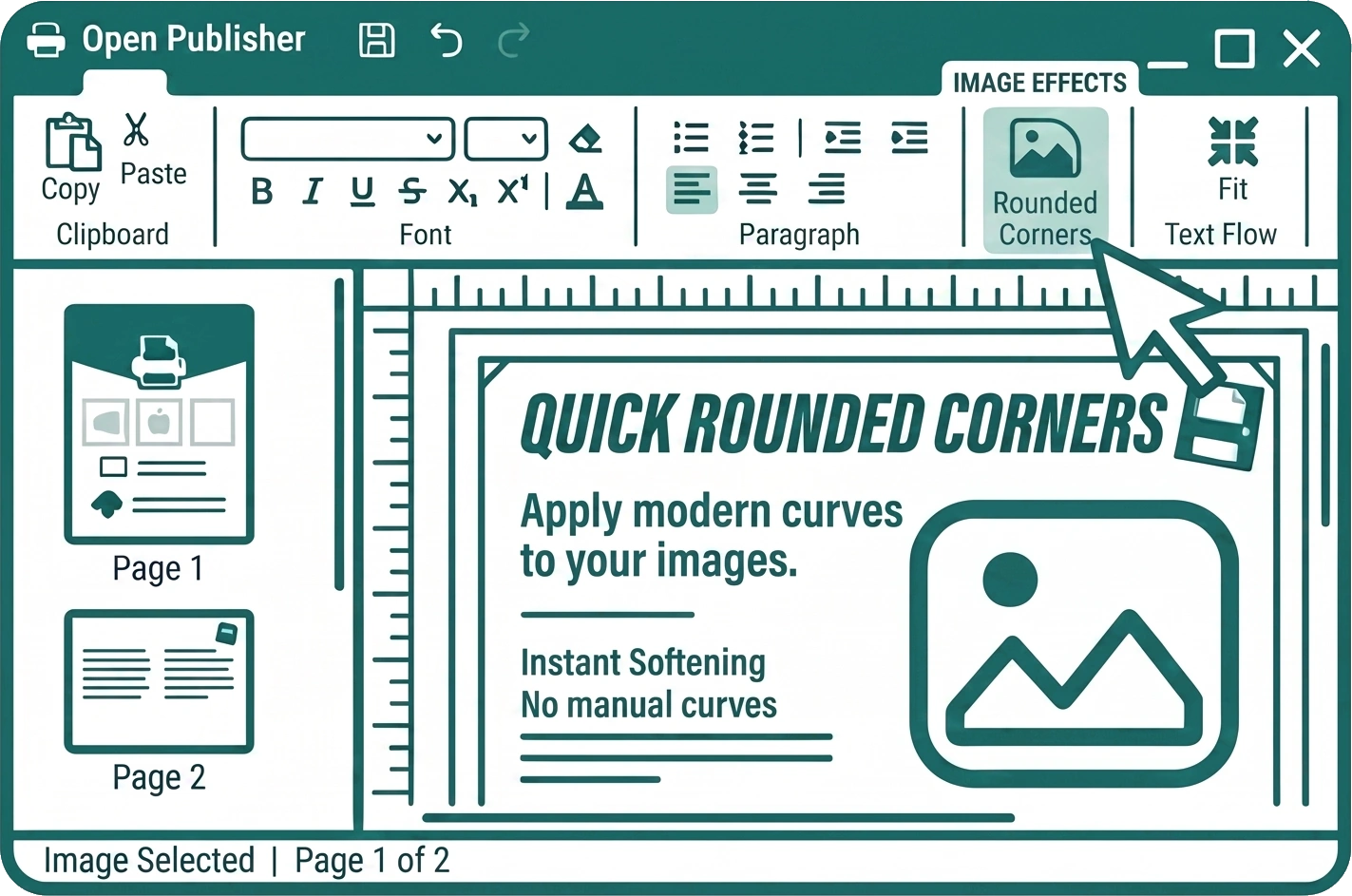
You can instantly soften the edges of any picture in your document using the Quick Rounded Corners tool. This provides a fast way to apply modern, curved edges to your photos without needing to manually draw shapes or open complex masking menus.
Applying Rounded Corners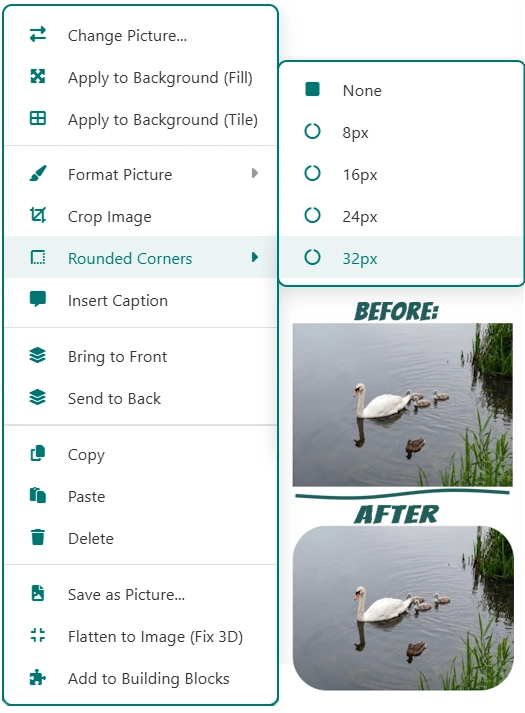
-
Select the image you want to modify on your canvas.
-
Right-click the image to open the context menu.
-
Hover over Rounded Corners to reveal the flyout menu.
-
Select your desired corner radius: 8px (subtle), 16px (standard), 24px (soft), or 32px (pill-like).
The corners will instantly apply to the image. Because this is a non-destructive crop, your original image data is preserved perfectly. You can change the radius at any time, or remove it entirely, without losing any quality or cutting off your picture permanently.
The Crop to Shape Modal
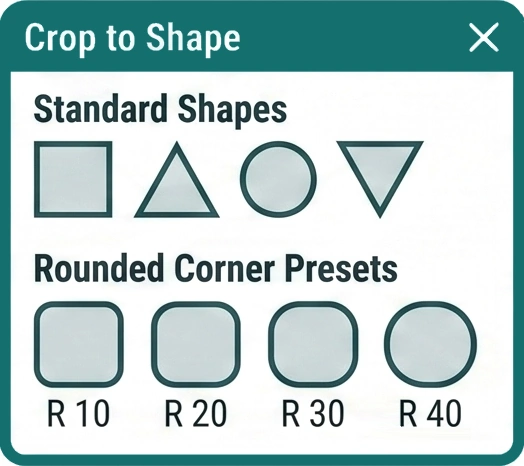
The four rounded corner presets are also fully integrated into the main Crop to Shape modal. If you prefer working from the ribbon instead of the right-click menu:
-
Select your image.
-
Navigate to the Picture Tools contextual tab.
-
Click Crop to Shape.
-
You will find the new rounded rectangle presets prominently listed alongside the other standard shapes.