
Save As Functionality
In professional desktop publishing, protecting original master templates while creating new publication variants is essential. Open Publisher features a dedicated Save As function, allowing you to branch off existing projects into new files without altering or overwriting your original source document.
💾Open Publisher Save As Dialog Prompt
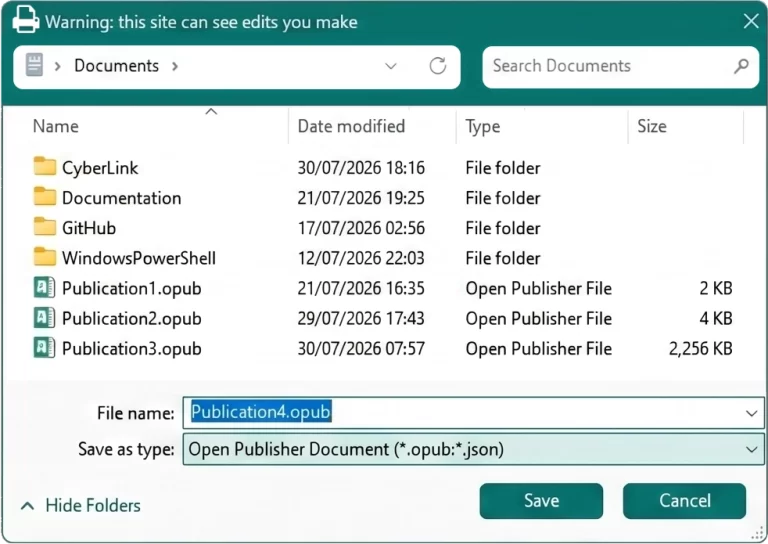 Dedicated Save As prompt requesting a new filename to branch publications securely.
Dedicated Ribbon Integration
The Save As command is seamlessly integrated into the application interface:
-
File Tab Placement: Access Save As directly from the main Ribbon under the File tab, positioned conveniently right below the standard Save option.
-
Filename Prompt: Clicking Save As triggers the saveDocumentAs backend handler, which gracefully prompts you for a new document title before writing to disk.
-
Active Session Switching: Once saved, your active working session immediately updates to the new publication, leaving your previous file intact in its original folder.
Keyboard Shortcuts
For high-speed workflows, Save As can be triggered without lifting your hands from the keyboard:
-
Windows & Linux: Press Ctrl + Shift + S.
-
macOS: Press Cmd + Shift + S.
-
Native Interception: The shortcut is mapped natively at the system patch level, preventing web browsers from opening browser save dialogs instead of Open Publisher's file routine.
Safe Template Branching
Save As provides the ideal foundation for document templates. You can open a standardized corporate brochure or newsletter template, make project-specific alterations, and save the result as a new .opub file with complete confidence that your original template remains pristine.
Note: All embedded graphics, page layouts, and custom theme swatches are carried over into the new publication file.