
Multi-Page Overview Decoupling & Viewport Architecture
In version 5.1.5, Open Publisher underwent a major architectural overhaul to its canvas viewport and page navigation engines. In earlier versions, zooming out on high-resolution publications (such as 140 DPI or 300 DPI A4 documents) automatically triggered an unexpected mode switch into a multi-page overview grid, freezing sidebar navigation, causing rulers to repeat erratically across the pasteboard, and detaching margin guides into empty canvas space. Version 5.1.5 completely decouples Multi-Page Overview from camera zoom scale, putting full control back in the designer's hands.
🔍Decoupled Single-Page Zoom vs. Multi-Page Overview
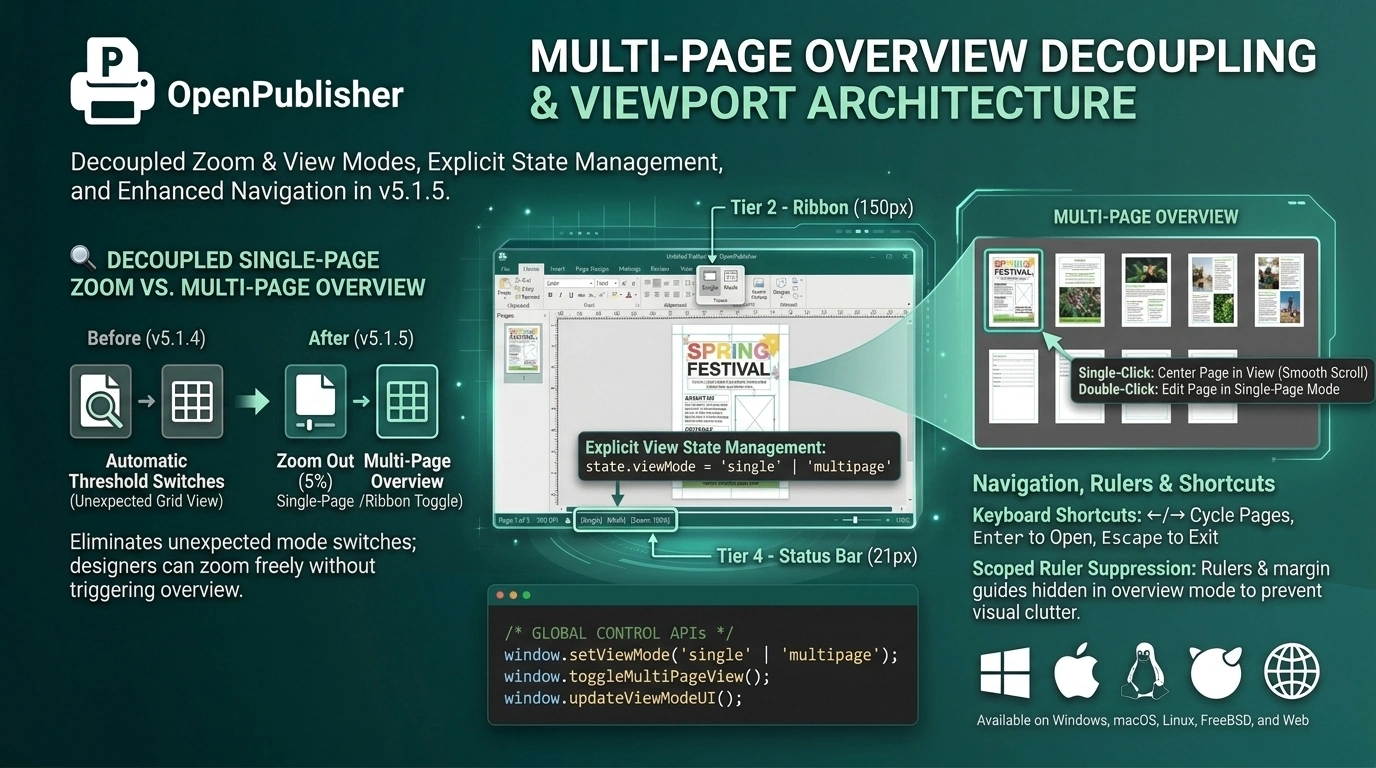 Designers can zoom down to 5% in single-page mode or switch to Multi-Page Overview via dedicated status bar buttons.
Decoupled View Architecture
The camera zoom scale and document view mode now operate independently:
-
Eliminating Automatic Threshold Switches: Dynamic threshold triggers have been removed from setZoom(). You can zoom out freely from 300% down to 2% to view full-page layouts without ever triggering a multi-page grid switch against your intent.
-
Explicit View State Management: The active mode is governed by state.viewMode = 'single' | 'multipage'. Zooming in Single-Page mode scales #paper smoothly, while zooming in Overview mode scales the multi-page grid container.
-
Global Control APIs: Manage view modes programmatically via window.setViewMode(mode), window.toggleMultiPageView(), and window.updateViewModeUI().
Realigned Status Bar & Ribbon View Toggles
View switching is integrated into intuitive interface touchpoints:
-
Status Bar Cluster: Quick switcher buttons ([Single] and [Multi]) are positioned directly in the center status group alongside the page counter and DPI badge: Page 1 of 5 | 300 DPI | [Single] [Multi].
-
Dedicated Ribbon Group: Access the Views group under the View tab on the Ribbon to toggle between layouts.
-
Canvas Context Menu: Right-click anywhere on the pasteboard or canvas background to toggle Multi-Page Overview instantly.
Overview Navigation, Rulers & Shortcuts
Multi-Page Overview provides seamless navigation across large publications:
-
Single-Click to Center: Clicking any page slot in the overview grid or sidebar highlights it with a teal border (.multi-page-slot-active) and smoothly centers the target slot in view.
-
Double-Click to Edit: Double-clicking any page slot immediately opens that page in Single-Page editing mode and executes fitToPage() for comfortable editing.
-
Keyboard Shortcuts: Use ← and → arrow keys to cycle between pages, Enter to open the selected page, and Escape to exit overview mode.
-
Scoped Ruler Suppression: Single-origin rulers (#ruler-h, #ruler-v) and floating margin guides are cleanly hidden while in multi-page mode to prevent misleading coordinate readouts, restoring automatically when returning to single-page mode.
Tip: When entering overview mode for the first time, an informative dialog explains navigation shortcuts with a "Do not show again" option.