
Continuous Font Scaling
Finding the perfect text size often requires minor adjustments to see exactly how the typography fits within your layout. Manually typing different point numbers into a box or repeatedly clicking a button can be tedious and break your creative flow. To make this process faster, smoother, and much more visual, Open Publisher features Continuous Font Scaling across all of its text size controls.
How It Works
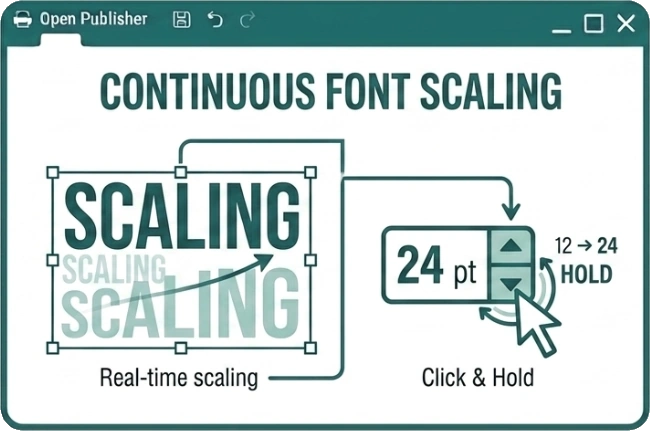
Instead of having to individually click the up or down arrows on the font size spinner for every single point change, you can now smoothly adjust your typography with a simple click and hold action.
-
Highlight the text you want to resize on your canvas.
-
Locate the font size spinner. You can find this in the main Home ribbon, the Text Box Tools tab, or conveniently within the quick floating text editing menu that appears near your cursor.
-
Click and hold your mouse down on either the up or down arrow next to the number.
As you hold the button, the numerical font size will rapidly and continuously spin up or down. At the same time, your selected text will scale live on the canvas. This real-time feedback allows you to instantly see how the text wraps, breaks, and interacts with the rest of your layout. Simply release your mouse button the exact moment the text looks perfect for your design.