
Text Formatting & Shortcuts

Open Publisher supports a comprehensive range of typography controls and keyboard shortcuts for rapid text formatting.
Keyboard Shortcuts for Text Formatting
All standard formatting shortcuts are fully supported inside text boxes:
| Shortcut | Action |
| Ctrl+B / Cmd+B | Toggle Bold. |
| Ctrl+I / Cmd+I | Toggle Italic. |
| Ctrl+U / Cmd+U | Toggle Underline. |
| Ctrl+Space | Clear Formatting - strips all manual formatting and resets to the default style (Segoe UI, 12px). |
| Shift+F3 | Cycle Change Case (see below). |
| Ctrl+Shift+K / Cmd+Shift+K | Toggle Small Caps. |
| Ctrl+Shift++ / Cmd+Shift++ | Toggle Superscript. |
| Ctrl+= / Cmd+= | Toggle Subscript. |
| Ctrl+Shift+> | Increase font size by 1px. |
| Ctrl+Shift+< | Decrease font size by 1px. |
| Ctrl+Z / Cmd+Z | Undo last text change (keystroke-by-keystroke granularity). |
All of these shortcuts are guarded so they only activate when you are actively editing inside a text box, preventing interference with canvas-level interactions.
Bold, Italic, Underline
The standard Ctrl+B, Ctrl+I, and Ctrl+U shortcuts work reliably inside any text box. Each change is recorded in the undo history, so Ctrl+Z will reverse them as expected. The ribbon buttons for these actions prevent the text box from losing focus when clicked, ensuring the formatting is always applied to the correct selection.

Clear Formatting
Press Ctrl+Space while text is selected to strip all manual formatting – bold, italic, underline, custom fonts, colours, and sizes – and reset the selection back to the document default style (Segoe UI, 12px). This is particularly useful for cleaning up pasted content from external sources.
Change Case
The Change Case button is found in the Text Box Tools contextual ribbon. Clicking it (or pressing Shift+F3) cycles your selected text through four formatting variants in sequence: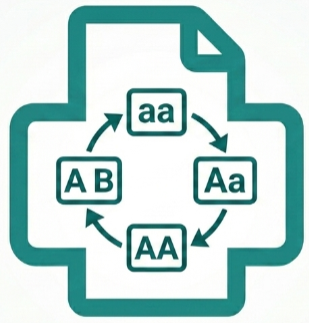
-
lowercase – all characters in lower case.
-
Sentence case – first letter capitalised, rest lower.
-
UPPERCASE – all characters in upper case.
-
Capitalize Each Word – title case.
Your text selection is preserved across each cycle, so you can keep pressing Shift+F3 to step through options without needing to re-select.
Small Caps
 Press Ctrl+Shift+K (or Cmd+Shift+K on macOS) with text selected to toggle Small Caps formatting. This wraps the selection in a non-destructive inline span with font-variant: small-caps applied. Pressing the shortcut again on already-formatted text intelligently strips the span and restores the original casing. The change is fully tracked by the undo system.
Superscript & Subscript
-
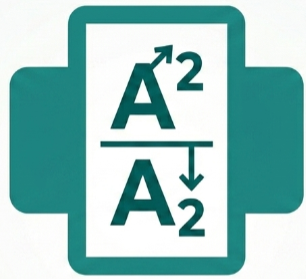
Superscript: Ctrl+Shift++ – raises selected characters above the baseline. Ideal for dates (10th), mathematical exponents (x2), or footnote markers.
-
Subscript: Ctrl+= – drops selected characters below the baseline. Ideal for chemical formulas (H2O) or footnote indicators.
Both shortcuts plug directly into the browser’s native execCommand API and are integrated with the undo stack.
Font Size Nudging
For fine-grained typographic control without reaching for the mouse, use:
-
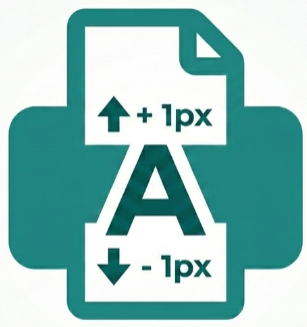
Ctrl+Shift+> to increase the selected text’s font size by 1px.
-
Ctrl+Shift+< to decrease it by 1px.
The floating toolbar’s size label updates in real time with every keystroke, giving you instant visual feedback. This shortcut works correctly even when Ctrl+A (Select All) is used to highlight the entire text box.
Quick Actions Toolbar & Instant Font Scaling
Version 5.10.3 introduced convenient floating shortcuts for typography adjustments. When selecting text or a text box, the Quick Actions Toolbar provides one-click font size nudging buttons alongside standard Ctrl+[ and Ctrl+] key combinations, allowing you to quickly bump point sizes up or down without navigating away from your active paragraph.