
Canvas Marquee Selection Viewport Clamping & UI Bleed Prevention
Dragging a selection marquee across the canvas is an everyday action for grouping objects, moving layouts, and making bulk formatting edits. However, when working zoomed in (150%, 200%, or 300%), earlier versions suffered from an intrusive visual artifact: the selection marquee bled outside the canvas boundaries and drew across ribbon toolbars, ruler bars, page preview sidebars, and status bars. Version 5.8.3 engineered strict mathematical intersection clamping, active sidebar occlusion awareness, and z-index layer isolation, ensuring selection boxes stay strictly confined to the editable canvas viewport.
🔲Zoomed-In Marquee Selection Strictly Clamped to Canvas Viewport
 Drag selection boundaries stop cleanly at ruler, sidebar, and ribbon edges when navigating at high magnification.
Mathematical Intersection Clamping
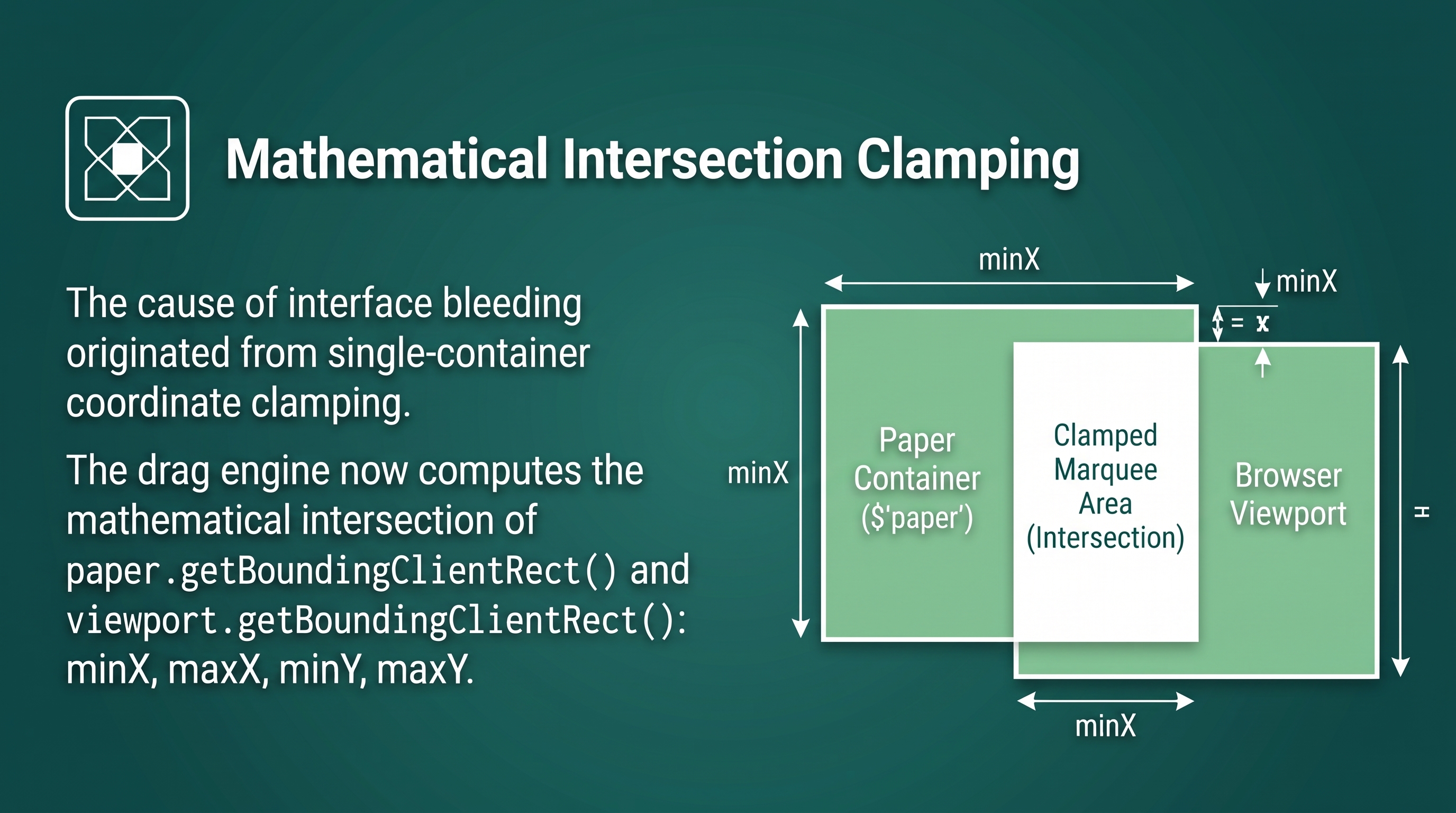
The root cause of interface bleeding originated from single-container coordinate clamping:
-
The Zoomed-In Paper Expansion: Previously, marquee coordinates were clamped solely against the physical paper container (#paper). When zoomed in, the paper bounding box expands hundreds of pixels beyond the browser viewport. Because the marquee element used fixed positioning with an elevated z-index, dragging near screen edges caused the selection box to draw directly on top of interface controls.
-
Dual-Boundary Intersection: In canvas/interaction-mouse.js, extensions/smart-images.js, and extensions/system-patches.js, the drag engine computes the mathematical intersection of paper.getBoundingClientRect() and viewport.getBoundingClientRect():
- minX = Math.max(paperRect.left, viewRect.left)
- maxX = Math.min(paperRect.right, viewRect.right)
- minY = Math.max(paperRect.top, viewRect.top)
- maxY = Math.min(paperRect.bottom, viewRect.bottom)
-
Zoomed-Out Preservation: When working at low zoom levels or viewing whole pages, the selection box remains locked to document paper edges, preventing the marquee from escaping into outer margins.
Sidebar Occlusion Awareness & Layer Isolation
The selection engine coordinates with active floating panels across the workspace:
-
Active Sidebar Detection: Detects open floating sidebars (including Picture Tools, Shadow Options, Accessibility Scanner, and Table Design) and dynamically clamps the right-hand selection limit to the left edge of visible panels.
-
Z-Index Layer Re-Balancing: Lowered marquee overlay z-index from 9999 to 45 with box-sizing: border-box, ensuring selection graphics remain cleanly beneath ribbons, rulers, and modal dialogs.
Thresholding & Dark Mode Theming
Marquee interaction includes safety thresholds and visual polish:
-
3px Drag Threshold: Marquee containers initialize with display: none. Element hit testing enforces a minimum 3px movement threshold before engaging selection mode, preventing accidental multi-selections on simple canvas clicks.
-
Dark Mode High-Contrast Styling: Features dedicated dark mode CSS for #marquee-box, rendering vibrant teal borders and translucent fills against dark backgrounds.
Tip: You can hold Shift while dragging a marquee to add new objects to your current selection without deselecting existing elements.