Image Filters & Alt Text
The Picture Tools sidebar provides real-time, non-destructive image filter controls alongside alt text support, giving you both creative control and accessibility compliance in one place.
Image Filters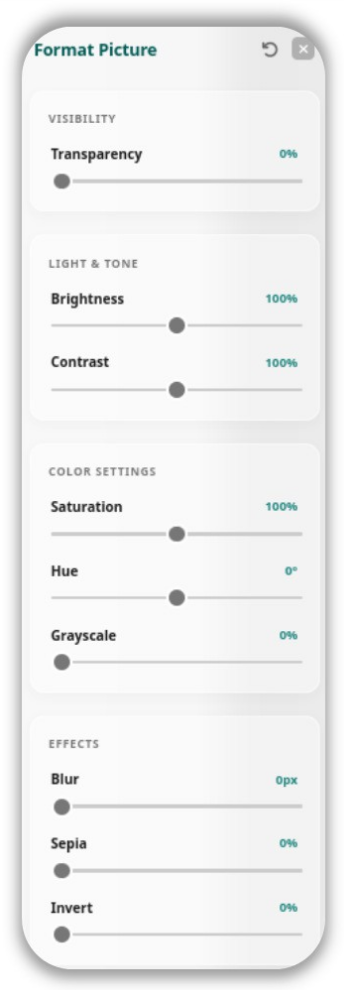
All filter adjustments are live on the canvas and applied using CSS filters – your original image file is never modified. The following controls are available in the Picture Tools sidebar:
-
Hue Rotation – Shifts the colour tones of the image across the colour wheel (0° – 360°). Useful for recolouring clipart or creating dramatic tinted effects.
-
Brightness – Lightens or darkens the image.
-
Contrast – Increases or reduces the difference between light and dark areas.
-
Saturate – Boosts or strips the colour intensity of the image.
-
Sepia – Applies a warm, vintage brown tone.
-
Blur – Softens the entire image.
-
Invert – Reverses all colours, creating a negative effect.
Note: Filters are non-destructive while on the canvas. Before printing or exporting to PDF, they are automatically “baked” into the image. The export engine waits for the filtered image source to be fully resolved before capturing the snapshot, ensuring your PDF and exported files correctly reflect all filter settings.
Alt Text
 Every image in Open Publisher can have Alt Text attached for accessibility compliance. Alt text describes the image to screen readers and is embedded in all HTML exports.
To add Alt Text:
-
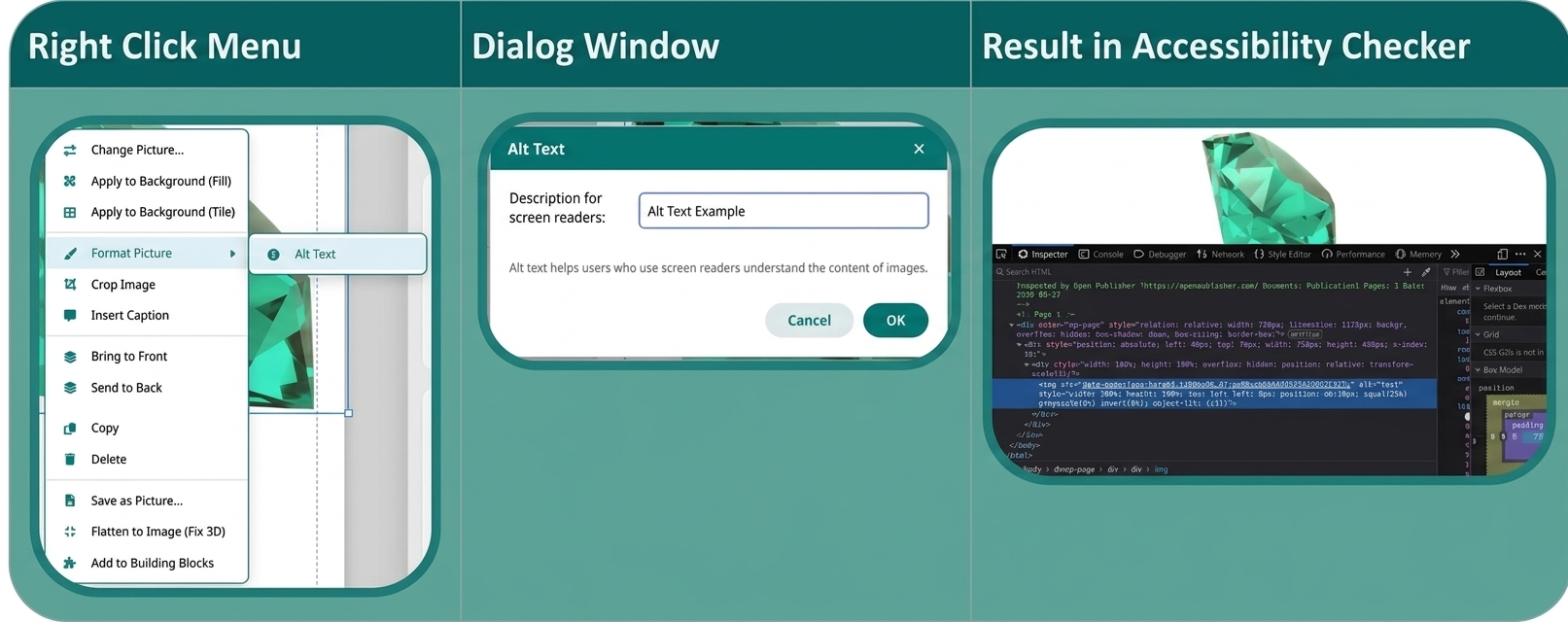
Right-click any image on the canvas.
-
Select Edit Alt Text from the context menu.
-
Type a descriptive label for the image (for example: “Company logo in teal green” or “Bar chart showing Q1 sales”).
-
Click Save.
The text is stored on the element’s data-alt-text attribute. It is written into the alt attribute of the <img> tag in all HTML exports, and is also reported by the Accessibility Checker as part of its WCAG 2.1 scan.