
Understanding & Creating Master Pages
A Master Page is a special, dedicated layout layer that sits behind every page in your document. Any element you place on the Master Page – such as a header, a footer, a company logo, a watermark, a decorative border, or a background image – will automatically appear as a non-editable, ghosted background on every subsequent regular page. This eliminates the need to manually copy elements to every page in long publications.
This system is modelled directly on the Master Page concept in Microsoft Publisher and is particularly powerful for:
-
Company letterheads.
-
Branded newsletter or magazine templates.
-
Reports with consistent headers and footers.
-
Any publication requiring a repeating design element across all pages.
Master Page elements are integrated into every output pathway: standard printing, saddle-stitch booklet printing, PDF export, and HTML export all respect and render Master Page content correctly.
Creating a Master Page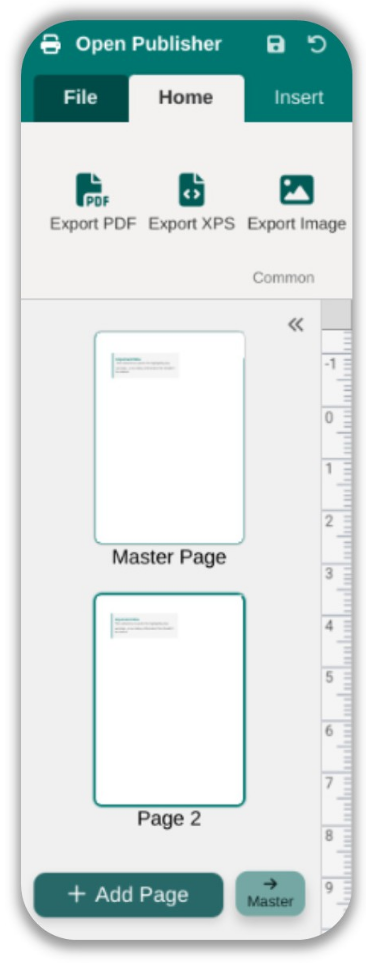
-
In the left-hand Navigation Pane sidebar, locate the Add Master Page button and click it. This initialises a new Master Page (Page 0) and switches your canvas to it automatically.
-
You are now editing the Master Page. Design your repeating elements here – add a logo image, draw a header background, insert a footer text box, or place any element you want to appear on every page.
-
When you are finished, click the Master button in the sidebar (or navigate to any regular page) to return to your normal document pages.
Note: Elements on the Master Page appear on regular pages with pointer-events: none applied, meaning they are permanently in the background and cannot be accidentally selected, moved, or edited from a regular page.
Navigating to the Master Page – The Double-Click Quick Toggle
In addition to using the sidebar button, you can jump directly to the Master Page using a quick double-click gesture on the canvas edge. This is the fastest way to make small header or footer adjustments while deep in your layout work.
-
Double-click anywhere within the top 100 pixels (the header area) of a regular page canvas to instantly jump to the Master Page and place your cursor in the header.
-
Double-click anywhere within the bottom 100 pixels (the footer area) to jump to the Master Page and focus in the footer.
Open Publisher is context-aware about this behaviour:
-
Confirmation dialog: If you double-click the header or footer area of a standard page, a dialog appears asking: “You double-clicked the header/footer area. Would you like to jump to the Master Page to edit the template for all pages?”. Click OK to jump, or Cancel to dismiss with no change.

-
Smart detection: If you are already editing the Master Page, the system detects this and steps aside – your native browser text-selection behaviour (double-click to select a word, triple-click to select a paragraph) works flawlessly without the toggle intercepting it.

-
Element avoidance: If you double-click near the edge but directly on an existing design element (a text box, shape, etc.), the toggle ignores the click and lets the element receive the event normally.

-
Zoom compensation: The detection engine automatically compensates for your current zoom level, so the 100px detection zone remains accurate regardless of how far in or out you are zoomed.
Ignoring the Master Page on Specific Pages

Sometimes a publication requires a specific page – such as a full-bleed cover, a blank divider, or an alternate layout – to be completely free of Master Page elements while all other pages retain them.
To hide the Master Page on a specific page:
-
Right-click the page thumbnail in the Navigation Pane for the page you want to exempt.
-
Hover over Master Pages in the context menu.
-
Select None (Hide).
The Master Page elements immediately disappear from that page’s canvas. All other pages are completely unaffected. This setting is serialised into the .opub file, so it persists across saves and reloads. It is also fully respected by all export pipelines – Print, Booklet Print, PDF, and HTML will all correctly omit the Master Page layer from exempted pages.