
QR Code Generator
The QR Code Generator lets you create fully customised, print-safe QR codes that point to any URL, text, or contact information, directly from the Insert ribbon.
Inserting a QR Code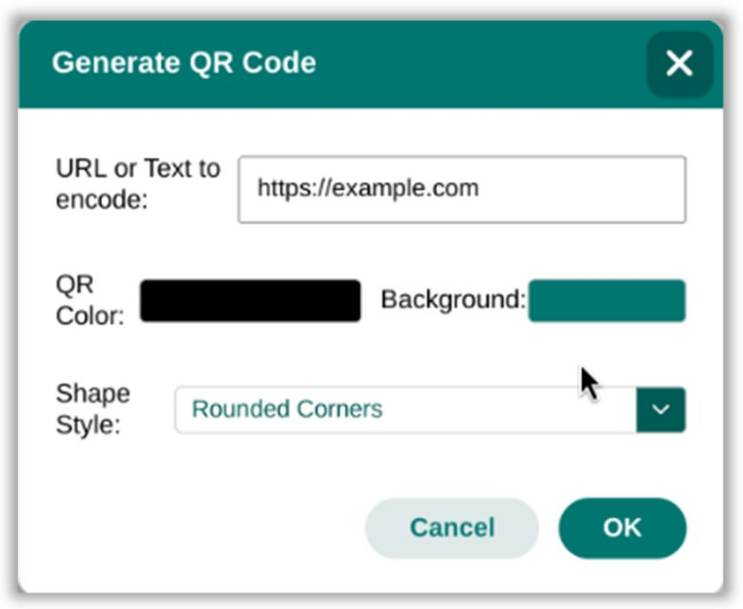
To insert a QR code:
-
Go to Insert > QR Code.
-
Enter the URL or text content for the QR code.
-
Customise the appearance using the options below.
-
Click Insert to place the QR code on the canvas.
Customisation Options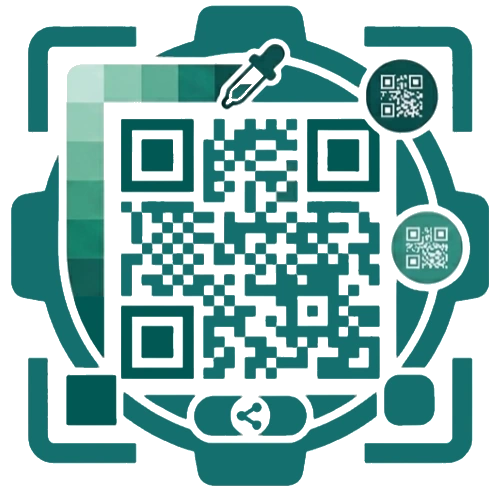
-
Foreground Colour – Dynamic colour picker for the QR code pattern colour.
-
Background Fill – Dynamic colour picker for the QR code background.
-
Standard – Default square QR code.
-
Rounded Corners – QR code with softly rounded module corners.
-
Circular Badge – QR code masked into a perfect circle.
Print-Safe Canvas Bake Method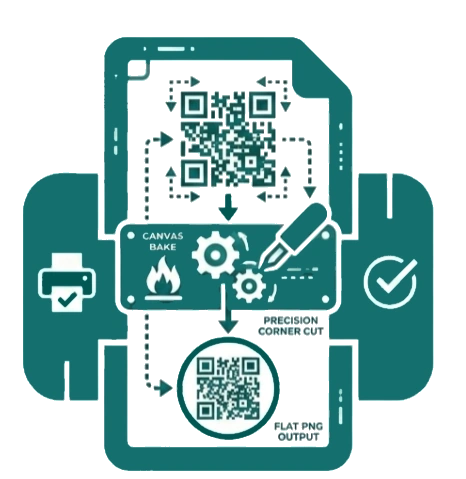
WebKit-based print engines (Chrome, Safari, and Edge) have a long-standing bug where CSS border-radius and clip-path shapes applied to images are ignored during printing, causing circular or rounded QR codes to revert to plain squares in your PDF.
To bypass this, Open Publisher uses a Canvas Bake Method every time a QR code is exported:
-
The generator fetches the raw QR image and draws it to an invisible canvas.
-
It physically cuts out the transparent corners pixel-by-pixel.
-
A visible boundary border is drawn around the result.
-
The final output is exported as a flat PNG with pre-cut transparent corners already baked in.
The print engine receives a standard flat image, guaranteeing perfect shape retention for rounded and circular QR codes in every PDF and print output – with no manual action required.