
Template Page Size Badges
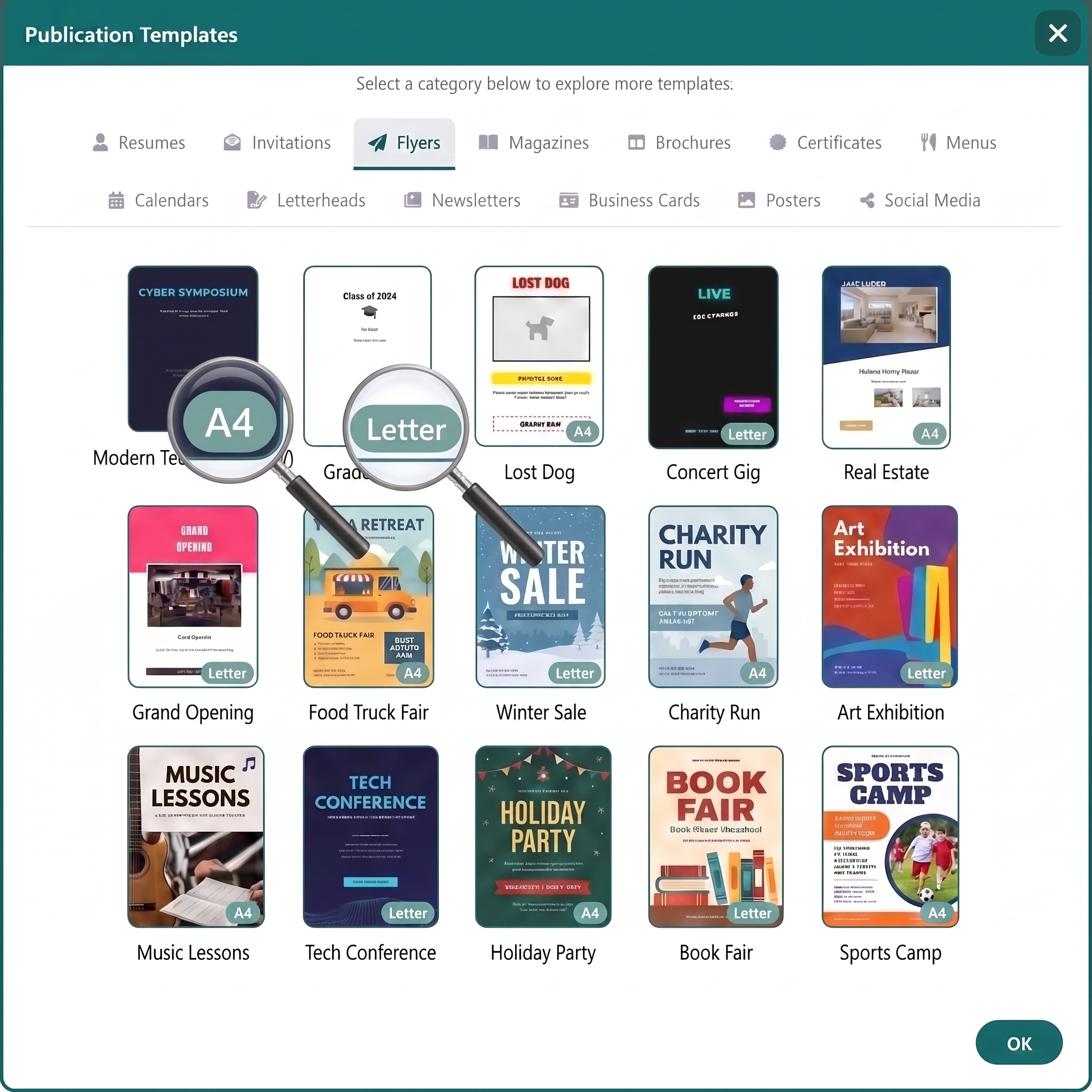
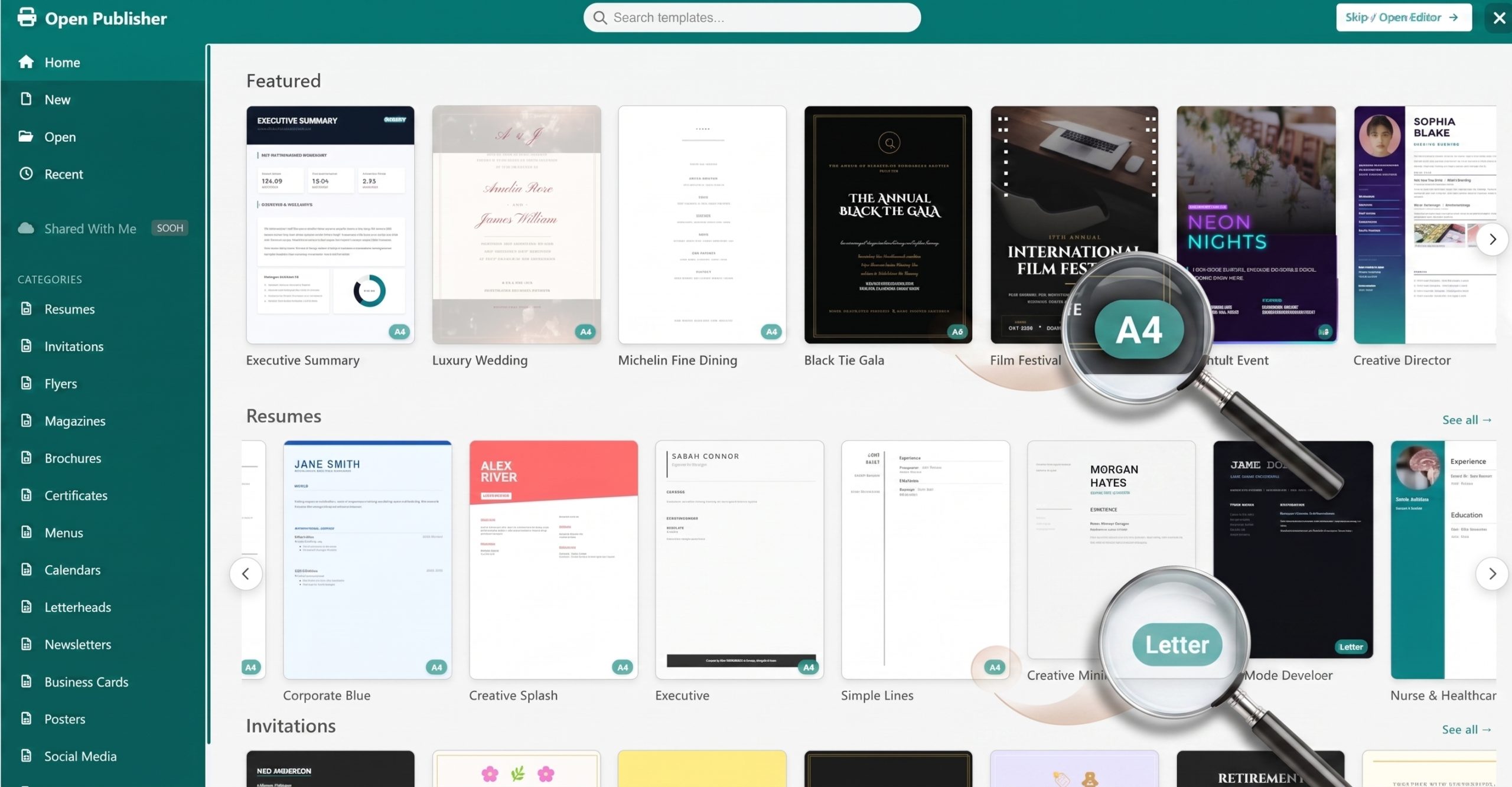
Starting a new project with the correct canvas dimensions is crucial for ensuring your final design prints correctly or looks sharp on a digital screen. When browsing the Publication Templates Gallery (accessible via the Startup Dashboard or the File menu), you can instantly identify the exact document dimensions of any template before you even click it, thanks to our intelligent Page Size Badges. This eliminates the frustration of opening a great-looking template only to discover it’s the completely wrong aspect ratio for your specific needs.
Identifying Template Formats
Finding a template’s size is incredibly easy at a glance. Look at the bottom-right corner of any template thumbnail preview card in the gallery. You will see a small, semi-transparent teal pill with a sleek frosted-glass effect displaying the page format. This badge is designed to be highly legible without covering up important design details on the thumbnail itself.
 –
–
How the Badges Work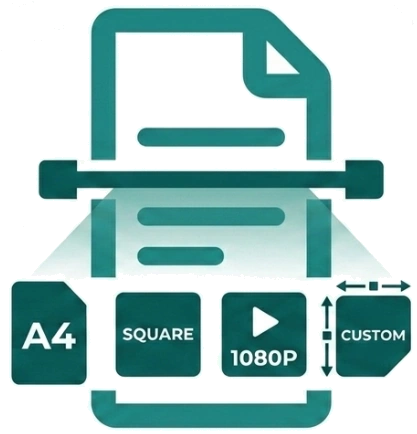
Instead of relying on manually typed descriptions that can sometimes be inaccurate, Open Publisher dynamically scans the internal geometric data of every template as the gallery loads and automatically assigns the correct, verified badge label:
-
Standard Paper – Essential for physical publishing. The engine automatically recognises and labels standard print formats including A4, Letter, A5, A3, Legal, and Tabloid. If the document is intentionally rotated for a wide layout, it will dynamically display a Landscape suffix (for example, “A4 Landscape”).
-
Square – Documents built with equal width and height dimensions are labelled cleanly as Square. These templates are perfect for Instagram posts, CD covers, or grid-based digital portfolios.
-
Video Resolutions – Digital-first templates tailored for screens are recognised by their standard resolution (e.g., 1080p, 4K, 720p). Portrait variants, such as a tall 1080×1920 design intended for a mobile social media story or digital signage, are accurately labelled with a Portrait suffix.
-
Custom Sizes – If a template uses a completely custom, non-standard layout (such as a slim web banner, specialized merchandise, or unique fold-out brochure), the badge seamlessly falls back to displaying the raw pixel dimensions (e.g., 632 × 900) so you always know exactly what size canvas you are about to open.
Eliminating Guesswork
By bringing this data to the surface of the gallery, Page Size Badges save you the hassle of loading a document, opening the page setup menu just to check its size, and then closing it to find another. You can browse with total confidence knowing the template you choose is technically ready for your final output.