
Snapping & Smart Guide
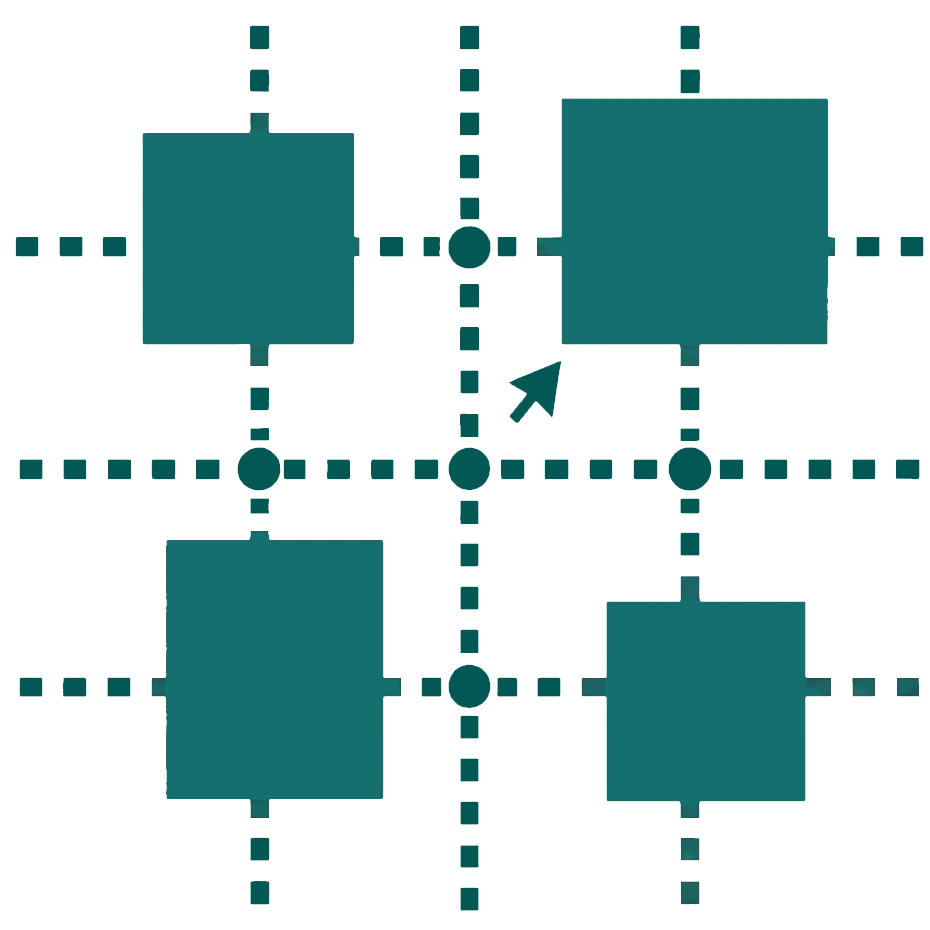
Open Publisher provides three independent snapping systems and a smart alignment guide system to help you position elements with precision. Each can be controlled separately to suit your workflow.
Snapping Modes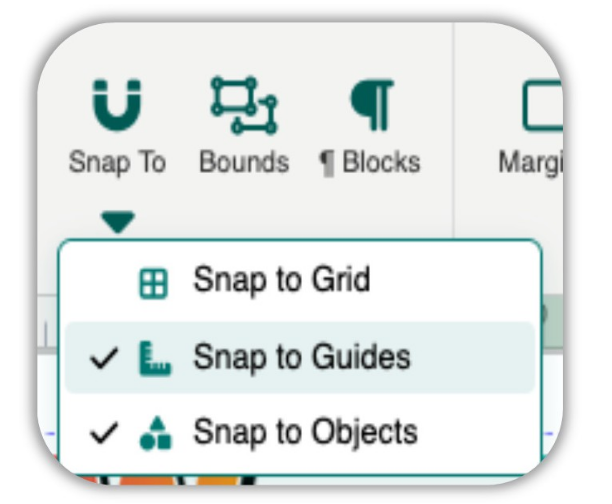
Three snapping modes can be toggled individually:
-
Snap to Grid – Elements snap to an invisible pixel grid as you drag.
-
Snap to Guides – Elements snap to the margin guide lines.
-
Snap to Objects – Elements snap to the edges and centres of other elements on the page.
To manage snapping, use the Snap To dropdown in the View tab, the Text Box Tools ribbon, or the Picture Tools ribbon. You can also right-click the canvas and toggle snapping options from the context menu.
Temporarily Bypassing Snapping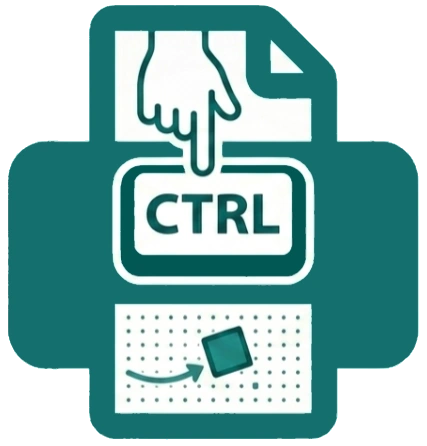
Hold Ctrl while dragging to temporarily bypass grid snapping without toggling the setting off. This is the most efficient way to place something between grid positions without changing your snapping configuration.
Snap Tolerance
The magnetic pull distance for Snap to Guides and Snap to Objects is set to 8 pixels.
This provides a subtle and predictable snap feel that matches professional desktop publishing software.
Smart Grid Prompt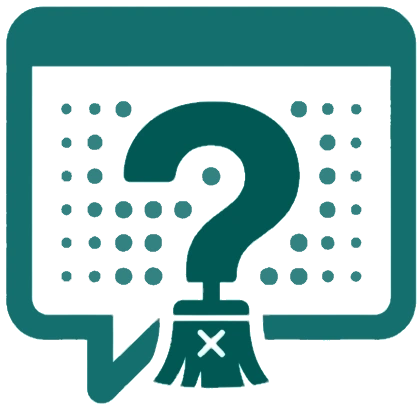
If you turn off Snap to Grid while the visual grid overlay is currently visible, a dialog intelligently asks if you also want to hide the visual grid to clear up your workspace – so you are never left with a grid overlay that serves no purpose.
Smart Guides (Alignment Lines)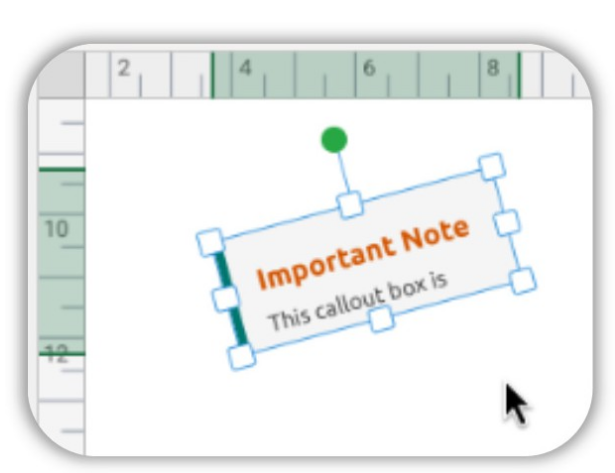
When you drag any element on the canvas, Smart Guides appear as semi-transparent teal lines indicating when the element is aligned with the edges or centres of other elements on the page.
Smart Guides use a smooth fade-in and fade-out transition rather than abruptly flashing on and off, preserving high responsiveness while eliminating visual flicker. The guide colour is a soft, semi-transparent teal – visible enough to be useful but not heavy enough to overpower your design.
Smart Guides work alongside the snapping system, not instead of it. Snapping “pulls” the element to the alignment point; Smart Guides show you where that alignment point is.