
The Startup Splash Screen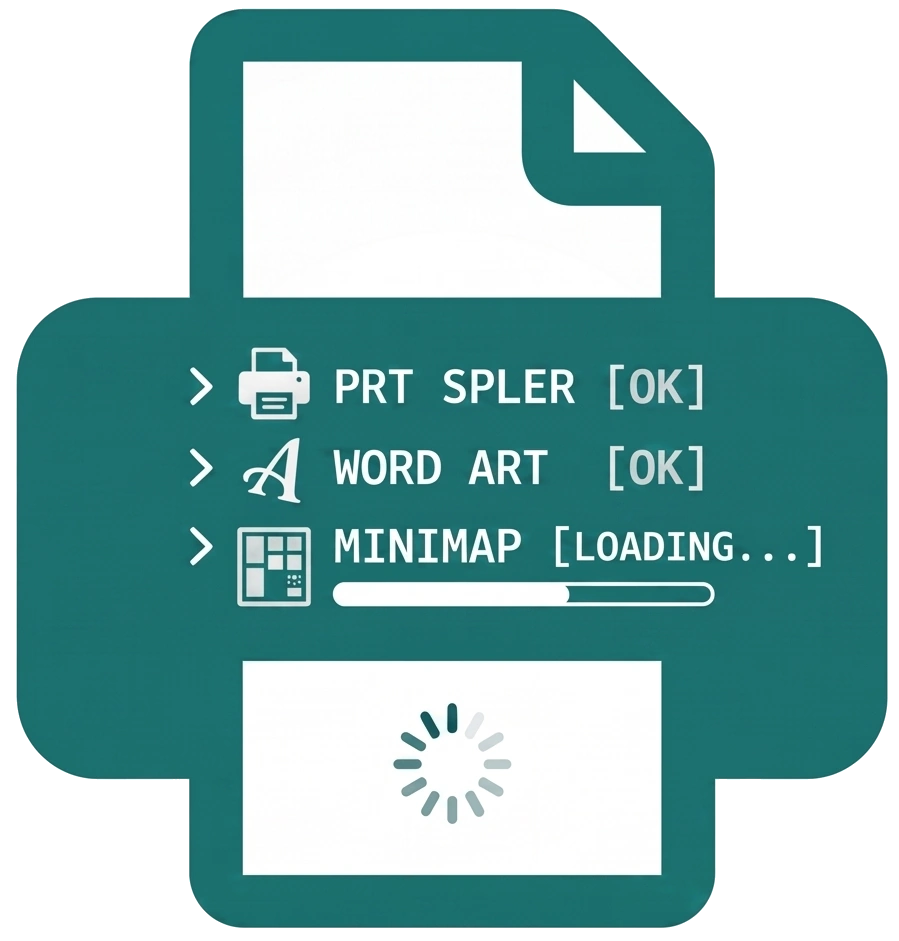
Instead of a static image that leaves you wondering if the application has frozen, every time Open Publisher loads, a dynamic Startup Splash Screen modal appears. This screen displays a real-time, terminal-style log of the application’s full initialisation sequence. As the software boots up, over 100 core modules are listed transparently as they load into memory – including the Print Spooler, WordArt Engine, Minimap System, and many more. This gives both everyday users and advanced troubleshooters a live, under-the-hood view of exactly what the software is doing during startup.
The Progress Bar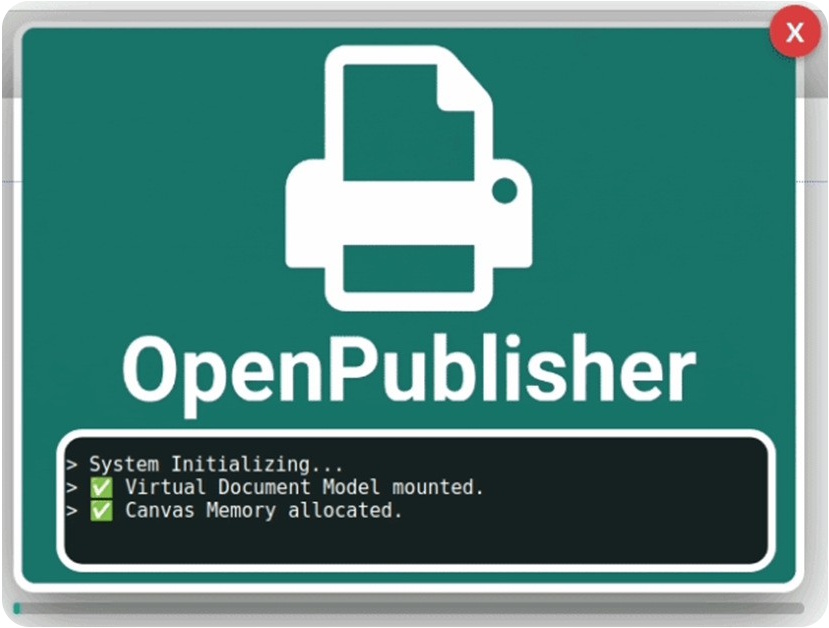
A sleek teal progress bar floats beneath the console output to help you track the boot process at a glance. Unlike fake loading bars that simply run on a generic timer, this bar is synced precisely to the percentage of modules that have successfully finished loading. As each individual module initialises, the bar advances in real time, giving you an accurate and reliable visual indicator of exactly how far through the boot sequence the application is at any given millisecond.
Realistic Boot Feel
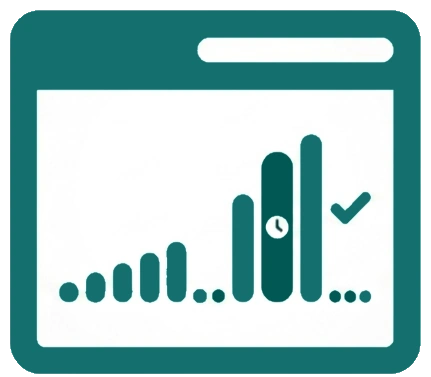 We wanted the startup experience to reflect the actual work the software is doing. The boot sequence runs at a fast 10ms base speed, but with an 8% chance to pause briefly on heavier, more resource-intensive modules. This creates the authentic feel of a real terminal boot sequence allocating system resources, rather than a uniform, pre-rendered animation. The result is a loading experience that feels highly responsive, tactile, and genuinely connected to your computer’s performance.
Draggable & Dismissible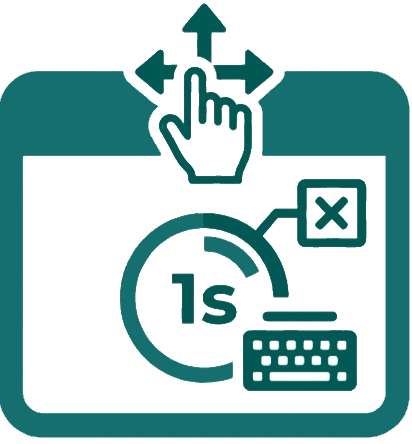
We know that a splash screen shouldn’t hijack your workflow. The modal is completely draggable, meaning it can be easily moved out of the way if you need to view files or folders on your desktop while Open Publisher loads. Once the boot sequence completes and all modules are ready, a smooth 1-second countdown begins before the modal automatically dismisses itself, bringing you straight into the workspace. If you are a power user or simply want to review the terminal log, you can press any key during this countdown to pause it, keeping the log open on your screen until you are ready to close it manually.