
Page Borders
Open Publisher includes a library of 100 unique decorative page border styles, all drawn using scalable mathematical SVG paths. Because they are vector-based rather than CSS approximations, they scale proportionally to any document size without loss of quality, and they support custom colours and thickness.
How to Apply a Border

The Borders tool is accessible from two locations in the ribbon:
-
Page Design tab.
-
Insert tab (under Graphics).
Click the Borders button to open a scrollable dropdown menu featuring:
| Category | Examples |
| Classic & Technical | Solid, Dashed, Blueprint, Pinstripe, Barcode. |
| Geometric Corners | Plaque, Ticket, Diamond, Target, Octagon. |
| Layered & 3D | Outset, Groove, Echo, Neon. |
| Craft & Deco | Filmstrip, Double-Stitch, Photo-Corners, Art Deco. |
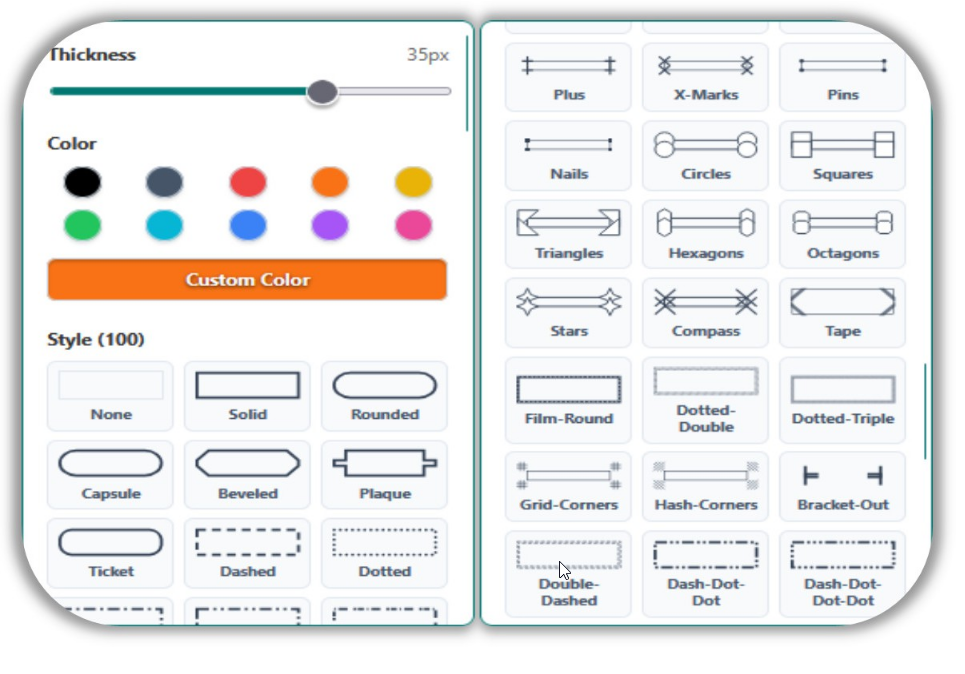
Customisation options in the dropdown:
-
10-colour quick-select palette for instant colour changes.
-
Custom hex colour picker for any specific colour.
-
Thickness slider to dial in precise pixel weights.
The dropdown renders an accurate 1:1 scaled preview of each border style (using the exact same SVG math used on the actual page, scaled down proportionally to a small card), so you know exactly what you will get before applying it.
Border Behaviour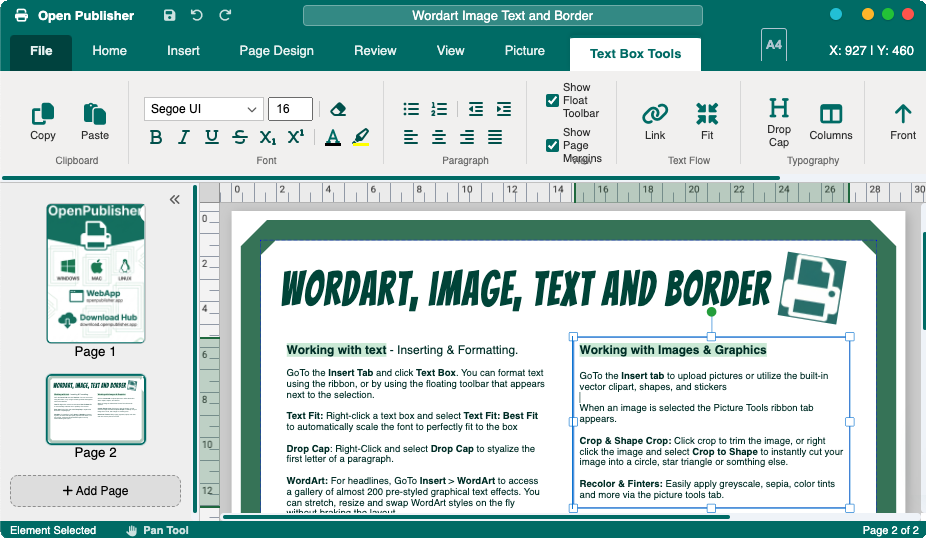
Once applied, a border is permanently anchored to the background of your page with pointer-events: none applied, meaning it cannot be accidentally dragged or selected while you work on your design. It is fully print-safe and will appear correctly in all export formats.