
Rulers & Ruler Origin
Pixel rulers run along the top and left edges of the canvas, giving you a precise spatial reference while you work. The ruler origin can be repositioned to any point on the page for even more accurate placement.
Showing & Hiding Rulers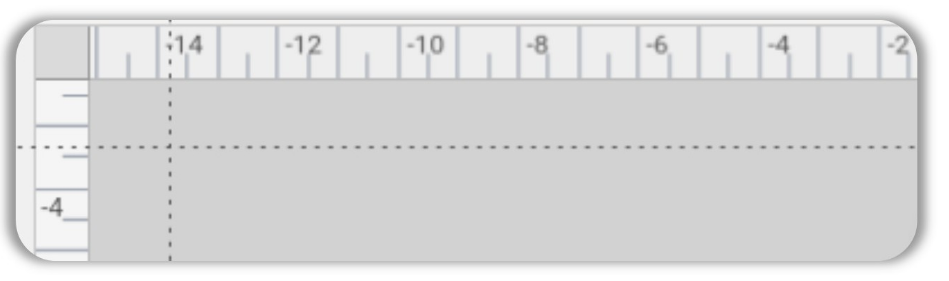
To show or hide rulers:
-
Go to View > Show > Rulers, or
-
Right-click in the workspace background and select Show/Hide Rulers.
Custom Ruler Origin (Zero Point)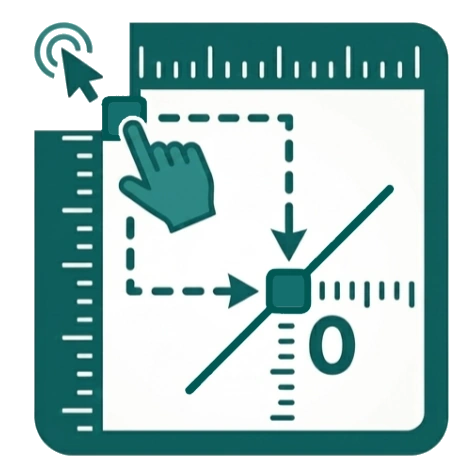
By default, the ruler’s 0,0 origin sits at the top-left corner of the canvas. You can redefine this origin to any point on the page:
-
Drag the grey intersection box where the horizontal and vertical rulers meet, at the very top-left corner of the canvas.
-
As you drag, dashed guide lines follow your cursor across the page to help you visually pinpoint the target coordinates.
-
Release to set the new zero point. All ruler ticks and labels immediately recalculate from the new origin.
-
Double-click the intersection box at any time to instantly reset the rulers back to their default position.
Your custom ruler origin is saved into the .opub file and persists across sessions.