
Shadows & Glow Effects
Open Publisher lets you apply drop shadows and glow effects to both images and shapes directly from the Picture Tools or Shape Format contextual ribbon, with all controls updating in real time as you drag.
Shadow Options
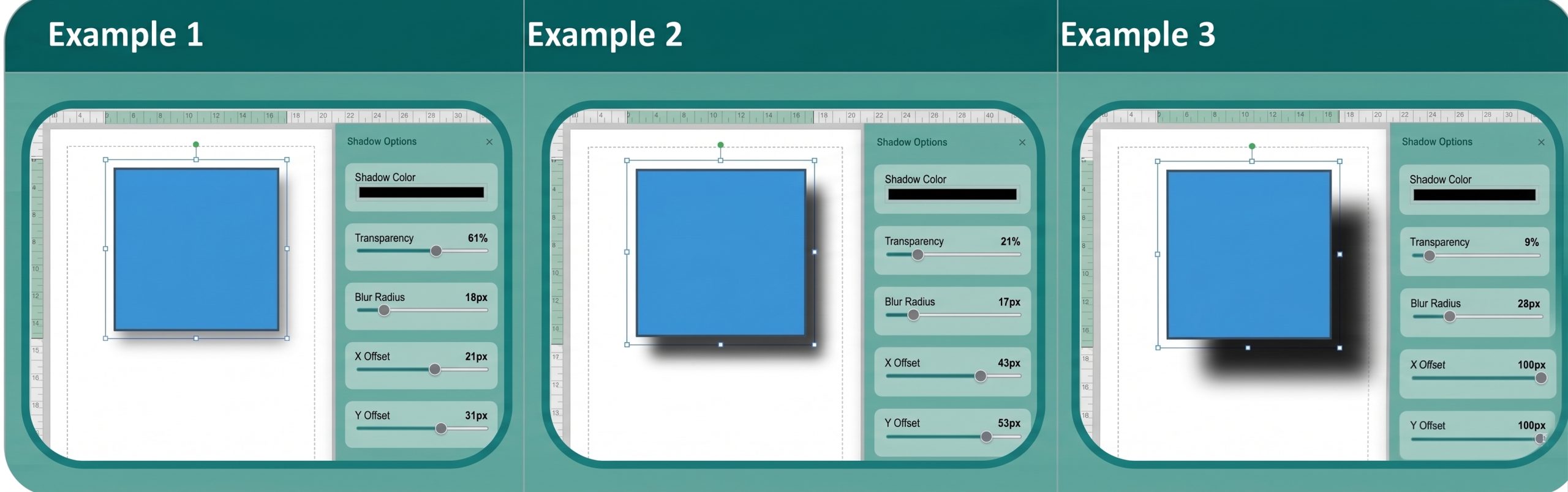
The Shadow Options pane gives you fine-grained, real-time control over drop shadows on both images and shapes.
To open Shadow Options:
-
Select an image or shape on the canvas.
-
In the Picture Tools or Shape Format contextual ribbon, click the Shadow button.
-
The Shadow / Glow Options sidebar slides open on the right.
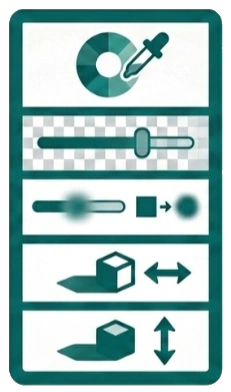
The sidebar contains five live controls:
-
Colour Picker – Sets the shadow colour.
-
Transparency Slider – Controls shadow opacity from solid to fully transparent.
-
Blur Radius Slider – Adjusts softness. Low values produce sharp, hard shadows; high values produce soft, diffuse halos.
-
X Offset Slider – Shifts the shadow left or right.
-
Y Offset Slider – Shifts the shadow up or down.
All five controls update the shadow in real time as you drag. When you click an element that already has a shadow applied, the sidebar automatically reads the existing values and snaps its sliders to match – so the UI always reflects the exact current state.
Shadows are applied using CSS drop-shadow filters on the element’s content wrapper, allowing the shadow to organically overflow the element’s bounding box without being clipped.
Glow Effects
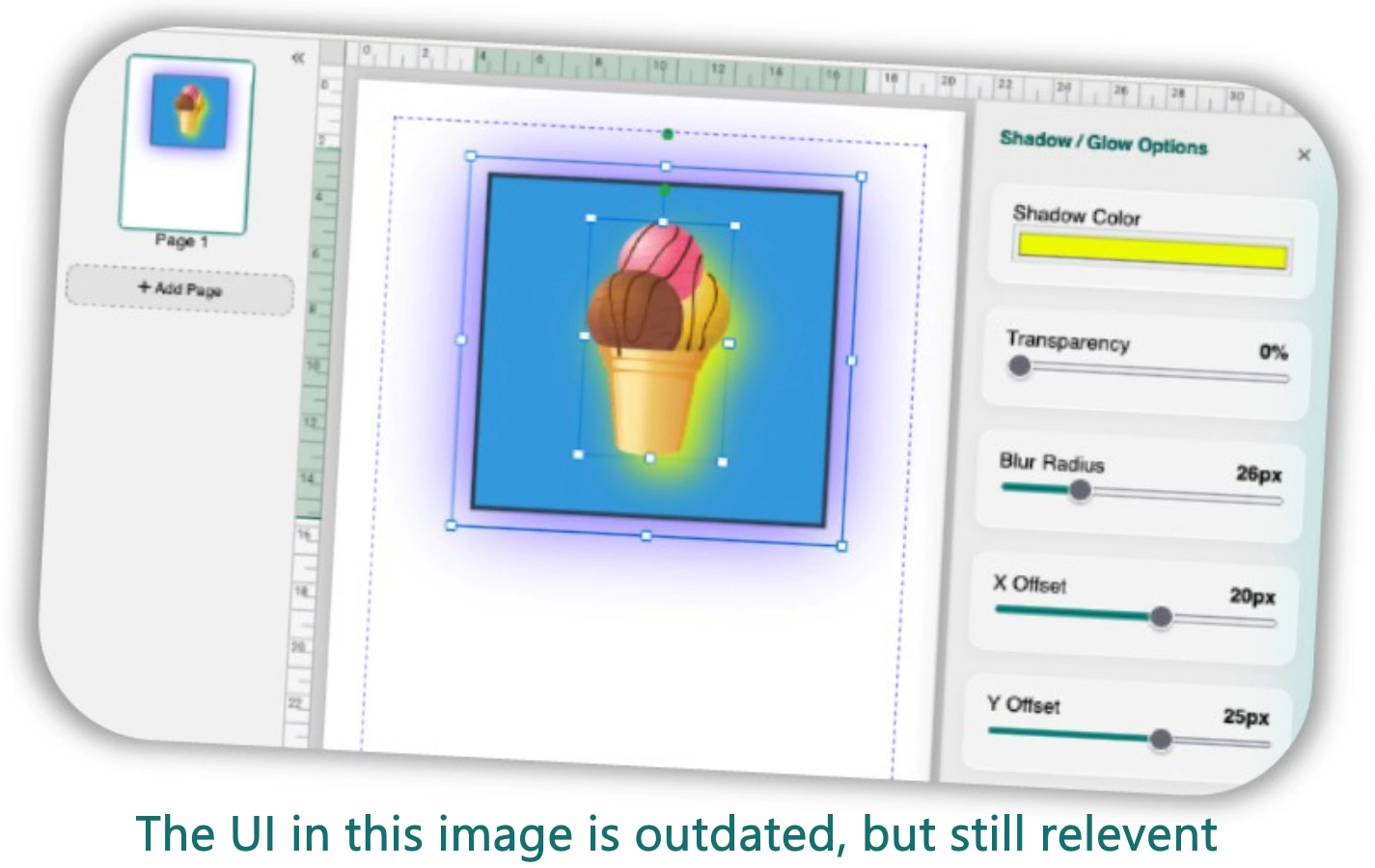
Glow is a specialised variant of the shadow effect, designed to make transparent PNG logos, shapes, and cutout graphics pop against dark or busy backgrounds.
To add a glow:
-
Select an image or shape on the canvas.
-
Click the Glow button (sun icon) in the Picture Tools or Shape Format ribbon, located next to the Shadow button.
-
A default electric-blue glow is applied immediately.
Use the same Shadow / Glow Options sidebar to adjust the blur radius, transparency, and colour – creating anything from a tight neon outline to a broad, soft luminous halo.
Printing Shadows and Glows on Rounded Images and Shapes
In earlier editions, applying a shadow or glow to an image with rounded corners or custom crop shapes could result in squared shadow clipping when printed or exported to PDF. Version 5.10.2 and 5.10.4 upgraded the print engine with dynamic Canvas 2D underlay baking: drop shadows and outer glows now follow the exact rounded contour of the cropped image or vector Smart Arrow, eliminating harsh rectangular borders and rendering with smooth 300 DPI anti-aliasing.