Page Margins
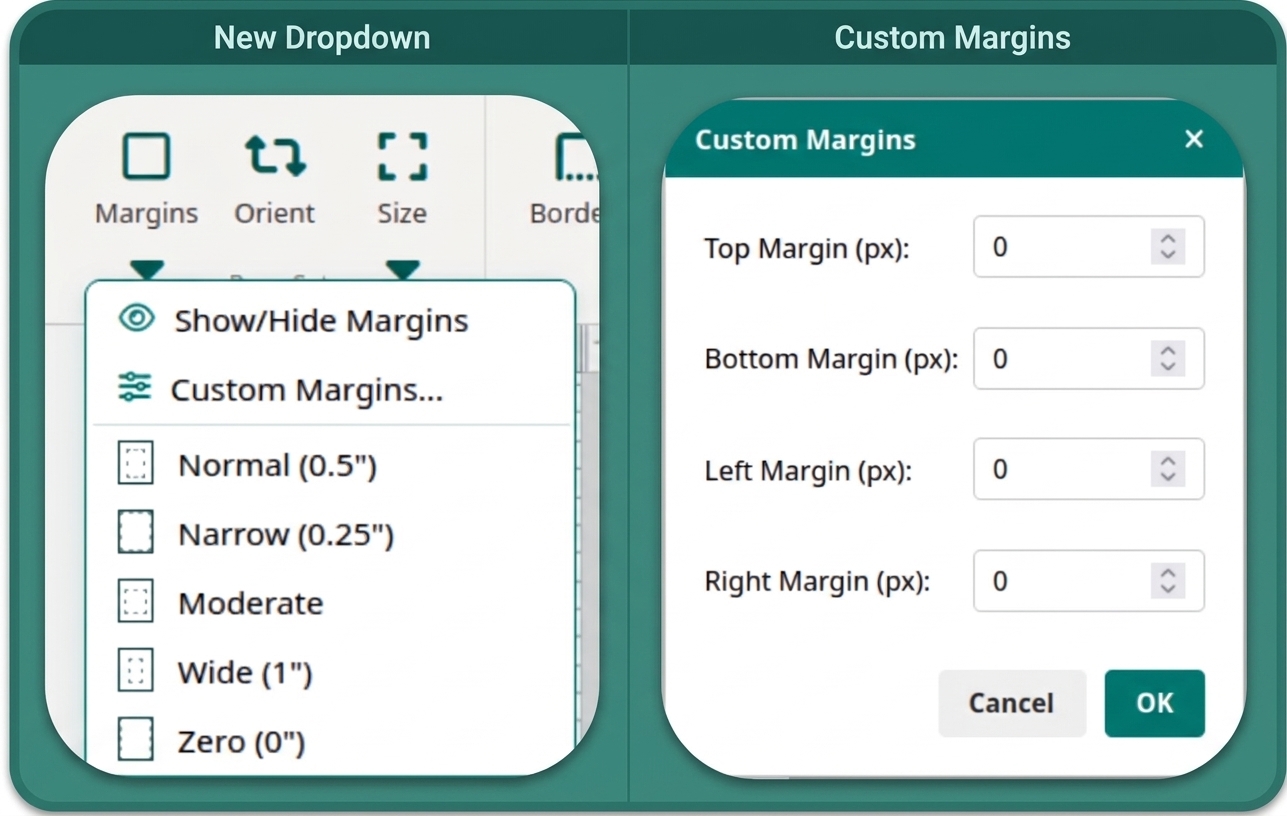
The Margins button in the Page Design ribbon controls the safe-zone guides on the canvas. Five presets are instantly available, each represented by a small dynamic page icon that visually previews the margin layout before you click.
Margin Presets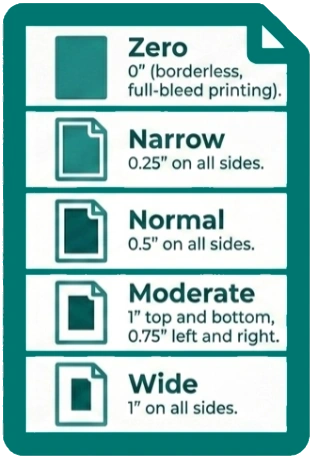
-
Normal – 0.5” on all sides.
-
Narrow – 0.25” on all sides.
-
Moderate – 1” top and bottom, 0.75” left and right.
-
Wide – 1” on all sides.
-
Zero – 0” (borderless, full-bleed printing).
Custom Margins
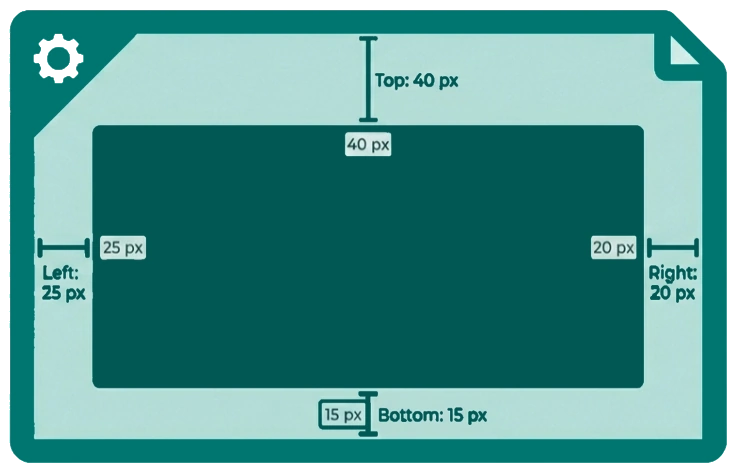
For precise control, click Custom Margins… to open a configuration modal where you can set independent top, bottom, left, and right margin values in pixels. Your custom margins are saved to the document and persist when the file is reopened.
How Margins Appear
Margins appear as dotted blue snapping guides on the canvas, giving you a clear visual safe zone while you design. They are automatically excluded from exported images and PDFs – they never appear in your final output.