
Page Views, Notes & Numbering
This guide covers essential document management tools that help you navigate, organise, and format multi-page publications efficiently.
Creating a New Document
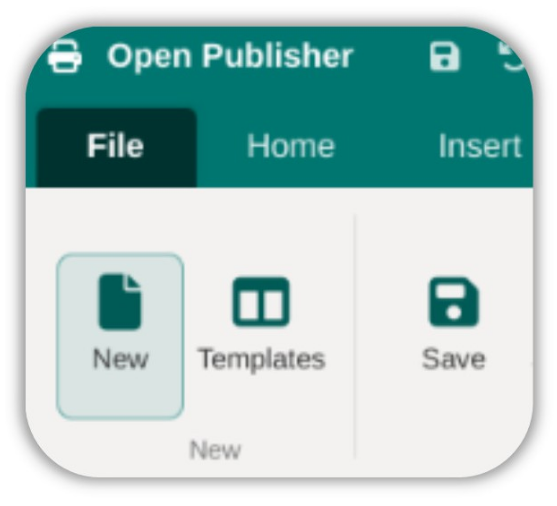 To start a fresh publication, go to File > New. This opens the template browser, where you can select from a range of professionally designed publication templates (newsletters, flyers, posters, business cards, etc.) or choose a blank canvas at a standard size. Once selected, a new, untitled document opens at the specified dimensions.
Two-Page Spread Mode
 For publications designed as booklets or magazines, enable Two-Page Spread Mode from the Navigation Pane context menu. In this view, facing pages are displayed side by side in the sidebar thumbnails, allowing you to visualise the relationship between a left-hand and a right-hand page as readers will see them.
Page Notes
For larger, multi-page documents, it can be helpful to label individual pages so they are easy to identify at a glance without clicking into them. Open Publisher’s Page Notes feature lets you attach a short custom identifier to any page.
How to add a Page Note:
-
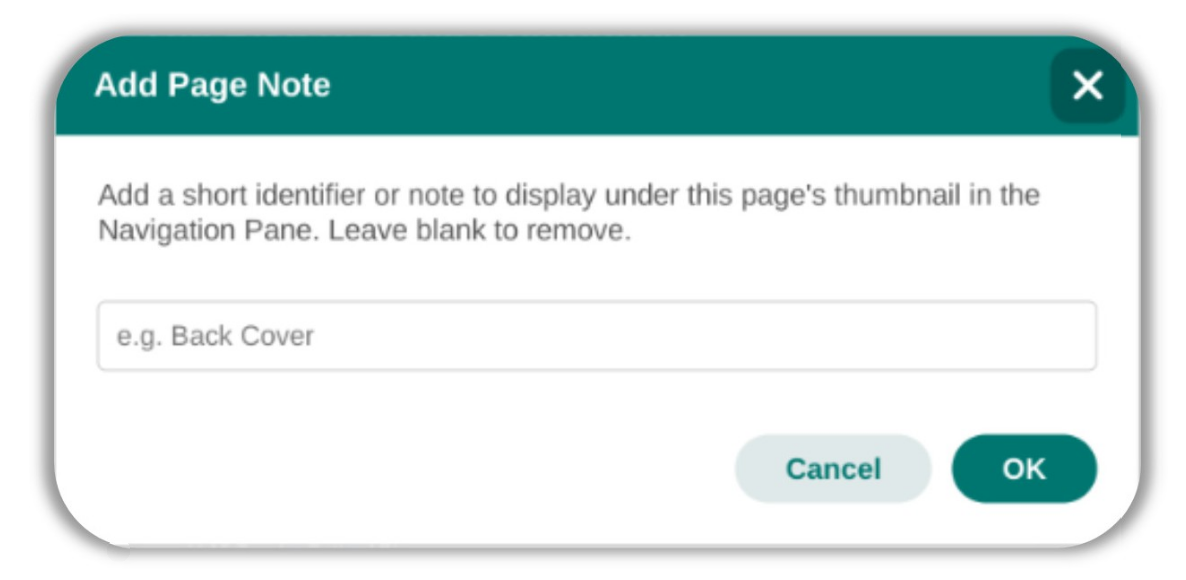
Right-click a page thumbnail in the left-hand Navigation Pane.
-
Select Add Note from the context menu.
-
Type a short label – for example: Front Cover, TOC, Back Cover, Chapter 3.
-
The note appears directly beneath the page thumbnail in a bold, teal-coloured font.
To remove a note, right-click the page, select Add Note, and leave the input field blank before confirming. The note will be cleared automatically.
Note: Page Notes are purely for your own organisational use within the editor. They do not affect page numbering, printed output, or exported files.
Multi-Page View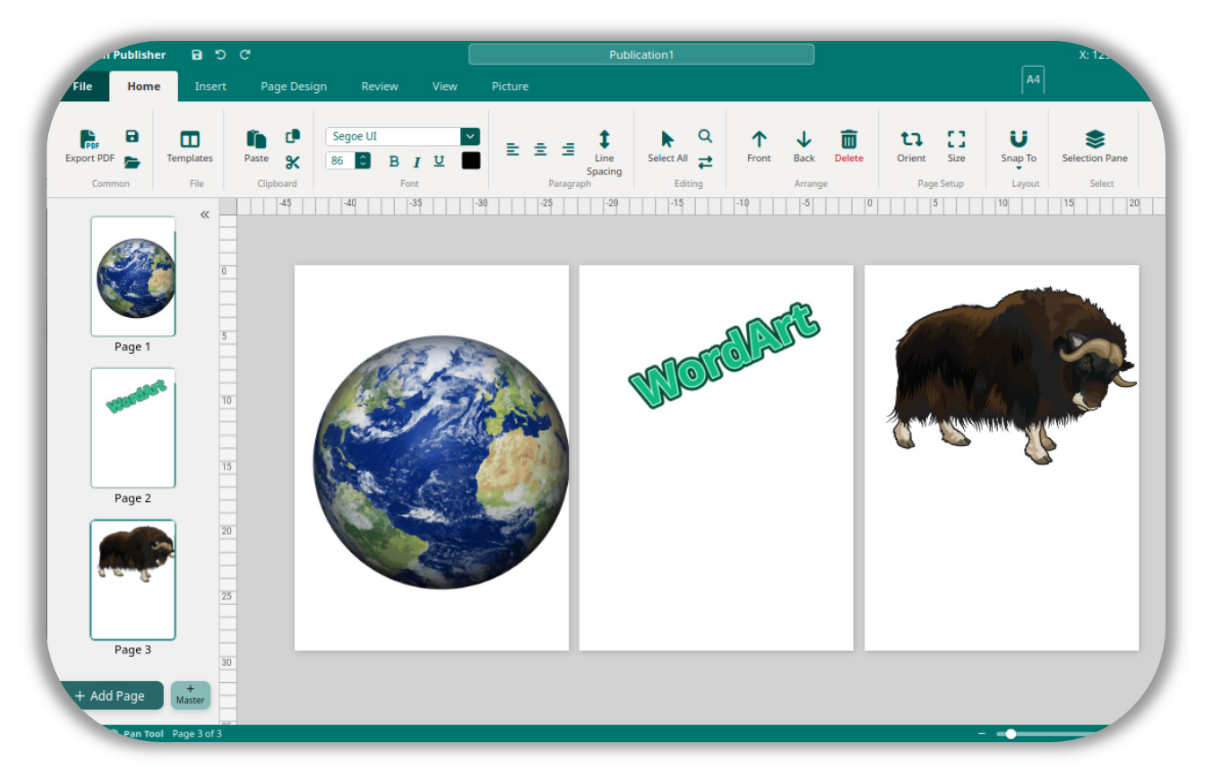
When you zoom out to 45% or below on a document that contains more than one page, Open Publisher automatically activates Multi-Page View. In this mode, all pages are rendered side-by-side in the workspace, giving you a bird’s-eye overview of your entire publication at once.
Key behaviours of Multi-Page View: 
-
All non-active pages are shown as read-only preview clones, rendered at full 1:1 quality.
-
The active (editable) page is clearly labelled with an “(Editing)” badge and retains full interactivity – you can type, drag, and select elements normally.
-
Clicking any preview page instantly swaps it to become the active editable page, while the previously active page converts to a read-only preview in its place – all without changing your zoom level.
-
Pages are always arranged horizontally in a single row, calculated to fit your display width.
To exit Multi-Page View, simply zoom back in above 45%.
Auto Page Numbering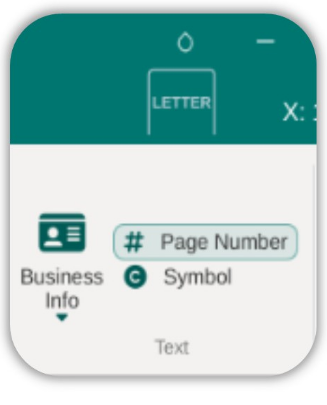
For longer documents, manually updating page numbers is tedious. Open Publisher provides an Auto Page Numbers feature that inserts dynamic, self-updating number tags.
How to insert auto page numbers:
-
Navigate to the Insert ribbon tab.
-
Click Page Number.
-
A page number element is inserted at your cursor position. It automatically displays the correct number for each page and updates itself as you add, remove, or reorder pages in your document.