
Draggable Custom Guides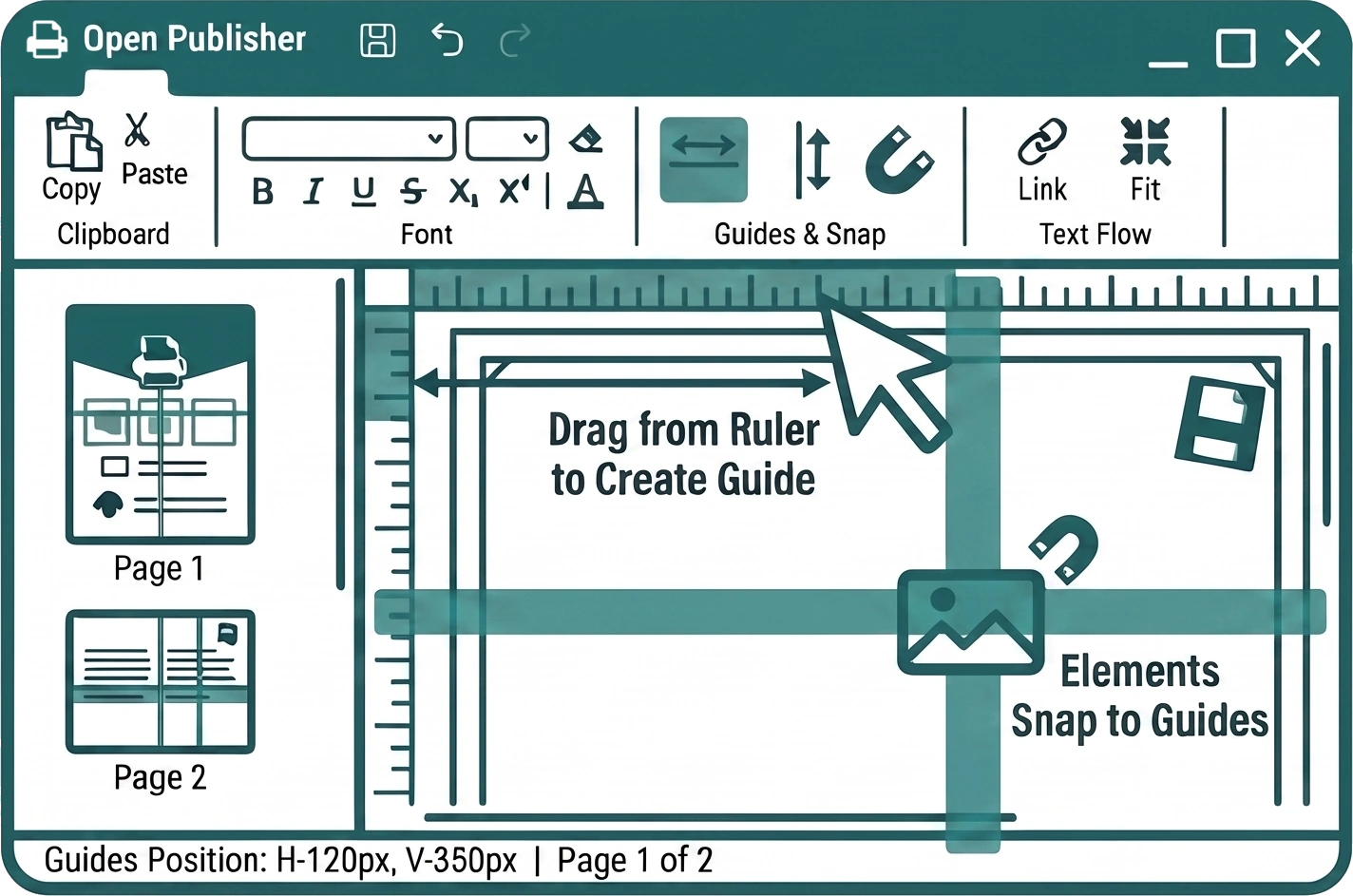
Open Publisher lets you pull custom alignment guides directly from the rulers onto the canvas. These are fully interactive teal lines that you drag into any position to mark out precise alignment points for your layout – and elements on the canvas will snap to them automatically.
Creating a Custom Guide

-
Hover over the top ruler to pull out a horizontal guide, or the left ruler to pull out a vertical guide.
-
Click and drag away from the ruler onto the canvas.
-
The guide appears as a 2px teal line and tracks your mouse 1:1, regardless of your current zoom level or scroll position.
-
Release the mouse to drop the guide into position.
You can place as many custom guides as you need. Each guide is elevated above all other document elements so it is always visible and never hidden beneath objects on the canvas.
Smart Snapping to Custom Guides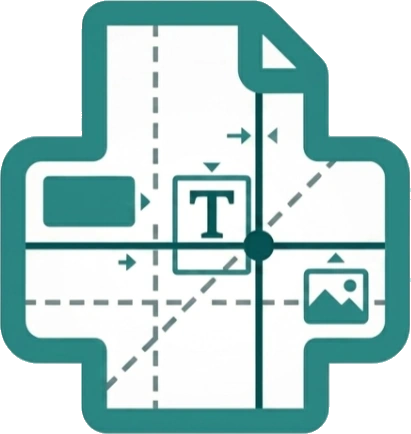
Custom guides are fully integrated into Open Publisher’s global snapping engine. As you move shapes, text boxes, and images near a guide, the element’s edges and centre points will snap precisely to it, flashing a bright teal highlight when the alignment is perfect. This makes it effortless to line up multiple elements along a consistent axis without any manual measurement.
Locking & Clearing Guides
Custom guide controls are available from the Page Design > Guides dropdown:
-
Lock Guides – Freezes all custom guides in place so they cannot be accidentally clicked or moved while you are working. Locked guides still display and snap to elements, but ignore any interaction until unlocked.
-
Clear Guides – Removes all placed custom guides from the canvas instantly with a single click.