
Inserting & Editing Text Boxes
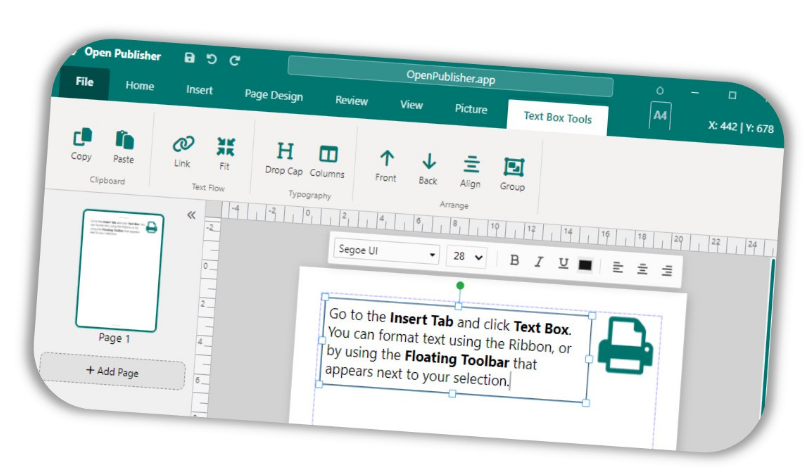
Text boxes are the primary container for all written content in Open Publisher.
How to Insert a Text Box
-
Go to the Insert ribbon tab and click Text Box, or press T while the canvas is focused.
-
Click and drag on the canvas to draw the text box at the desired size.
-
The cursor automatically enters editing mode, allowing you to begin typing immediately.
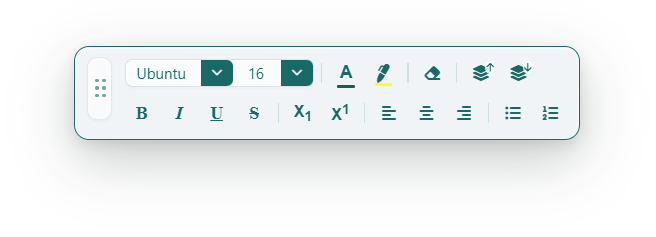
To edit an existing text box, double-click it. The box enters editing mode, the floating toolbar appears above it, and the Text Box Tools contextual ribbon activates at the top of the screen. To exit editing and return to selection mode, press Escape or click anywhere outside the text box.
The Typography Ribbon
When a text box is active, the Text Box Tools ribbon and the floating toolbar both give you access to a fully modernised set of typography controls. The font family and font size selectors use custom styled inputs with solid teal control blocks, hover highlights, and precision-aligned icons – consistent across the main Home tab and all contextual text toolbars.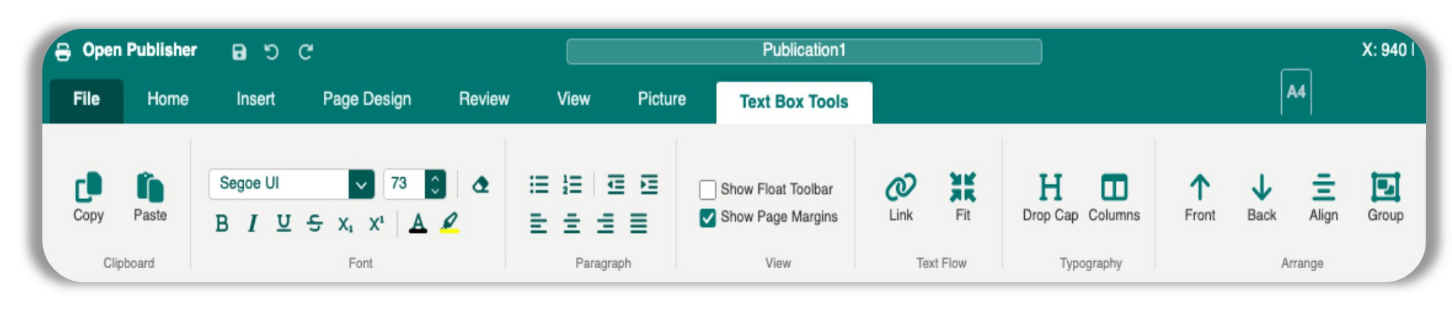
When you close a contextual tab (such as Picture Tools or Drawing Tools), the ribbon intelligently returns to whichever standard tab you were on previously – not always the Home tab – so your workflow is never interrupted.
Font Controls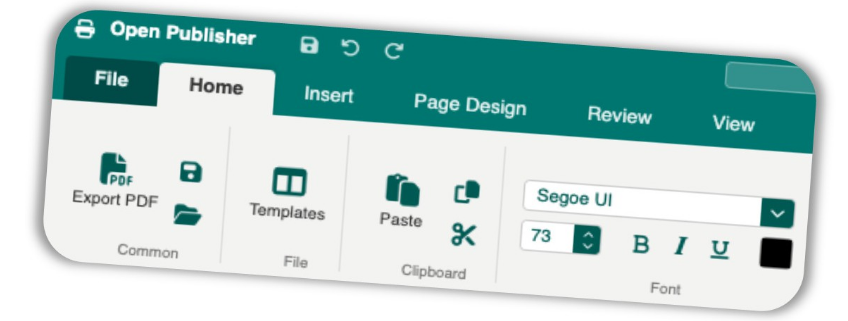
Use the Font group on the Home ribbon or the floating toolbar to change:
-
Font Family: Choose from all system and Google Fonts available.
-
Font Size: Type directly into the size box, use the up/down spinner arrows, or use keyboard shortcuts to nudge.
-
Text Colour: Opens the OS colour picker with a live preview that updates the canvas in real time as you drag the colour wheel.
-
Highlight Colour: Applies a coloured background highlight to selected text.
Refined Selection Outlines & Interaction Consistency
Version 5.9.8 refined the visual interaction when clicking into and out of text boxes. Bounding outline boxes now transition cleanly without ghost border artifacts or caret blinking stutter, providing a distraction-free editing environment when laying out dense typographic columns.
Text Selection Retention & Clipboard Polish
Version 5.11.9 brought several precision refinements to day-to-day text editing within text boxes:
Context Menu Selection Retention: Right-clicking highlighted text inside a text box now reliably preserves the active highlight range while displaying the context menu, preventing accidental caret jumps or deselection when copying, cutting, or applying character formats.
Smart Word Cut Spacing: When cutting or deleting whole words from a sentence, OpenPublisher automatically reconciles adjacent whitespace, preventing awkward double spaces or orphan punctuation marks.