
Zoom Controls
The zoom level is shown in the bottom-right corner of the workspace. A zoom slider allows smooth, continuous zoom from 10% all the way to 500%, giving you precise control over how much of your canvas is visible at any time.
Keyboard Shortcuts
-
F9 – Toggles between your current zoom level and 100% actual size. Pressing again returns to your previous zoom.
-
Ctrl + Shift + L – Whole Page View: instantly zooms to fit the entire page within the window.
-
Ctrl + Shift + O – Toggles element boundary boxes on and off.
Quick Zoom Presets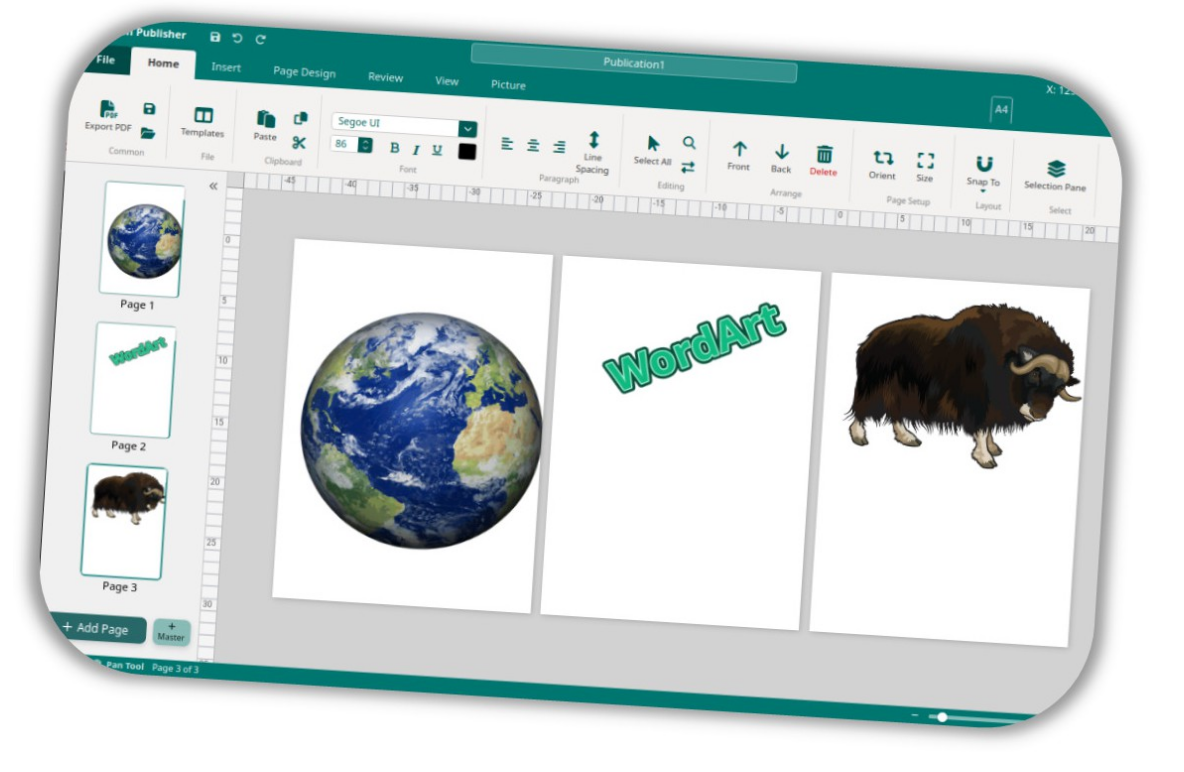
Right-click the zoom slider to open a context menu with instant one-click access to common zoom levels: 60%, 70%, 80%, 90%, 100%, 110%, 120%, 130%, 150%, 175%, and 200%.
Multi-Page View
When the zoom level drops below 45% and your document has more than one page, Open Publisher automatically switches to Multi-Page View, rendering all pages side-by-side in the workspace.
Read-only preview clones of all non-active pages appear alongside the live editable page. Click any preview page to switch to editing it instantly – without leaving multi-page view.
Zoom-Invariant Selection Handles
Selecting and transforming objects remains seamless whether working at 25% overview zoom or 500% high-precision zoom. Version 5.10.3 introduced scale-compensated selection overlays: the corner and edge resize handles dynamically scale inversely to viewport zoom, maintaining a comfortable, crisp 8px grab size at all zoom levels so you never struggle to click tiny handles when zoomed out.